- General information
- Installation and launch
- Interface overview
- Screen elements
- Command menu
- Main menu
- Toolbar
- Change display mode
- Hide or display tool group titles
- Hide or display the content of tool groups
- Customize the Favorites tool group
- Add an element
- Change a button to run a macro
- Move an element
- Remove an element
- Clear the Favorites group
- Hide or display the Favorites group
- Quick actions pane
- Workspace
- Sidebars
- Status bar
- Language
- Theme
- Files
- New file
- Save as template
- New from template
- Open a file
- Recent files
- Send a file via email
- Preview and print
- Save a file
- Autorecovery of documents
- Close a file
- Text
- Enter text
- Special characters
- Current date or time
- Spelling and grammar
- Correct spelling mistakes
- Add a word to the dictionary
- Import of third-party dictionaries
- Remove a word from the dictionary
- Find and replace data
- Move text
- Delete text
- Format
- Text styles and numbered headings
- Open the Styles pane
- Apply a style
- Create a style
- Edit a style
- Heading numbering
- Enable or disable heading numbering
- Set up template-based numbering
- Change heading numbering
- Limitations
- Delete a style
- Non-printable characters
- Font
- Font size
- Text formatting
- Text color
- Choose a color from the color sets provided
- Specify the color code manually
- Specify the color code manually
- Highlight color
- Alignment and spacing
- Horizontal alignment
- Vertical alignment
- Line spacing
- Character spacing
- Paragraph spacing and indents
- Rotate text
- Lists
- Create a list
- Change the list style
- Continue the numbered list
- Start a new numbered list
- Set the start number of the numbered list
- Change the number format
- Change the bullet format
- Format a number or bullet character
- Customize indents
- Change the nesting level
- Copy and paste a list
- Convert a list to text
- Copy and paste formatting
- Clear custom formatting
- References and links
- Table of contents
- Insert table of contents
- Add a level of table of contents
- Change the heading style for the table of contents level
- Delete a level of the table of contents
- Hide or display page numbers
- Format the table of contents
- Delete table of contents
- Links
- Insert a link to a web page or email address
- Insert a link to a file
- Quick link insertion
- Follow the link
- Copy a link
- Edit a link
- Delete a link
- Keyboard shortcuts
- Cross-references
- Footnotes
- Insert a footnote
- Navigate to a footnote
- Copy, cut and paste a footnote
- Edit and format a footnote
- Delete a footnote
- Bookmarks
- Tables
- Insert a table
- Insert a nested table
- Paste a table as an image
- Insert rows
- Insert columns
- Edit table content
- Select cells
- Select a column or row
- Select a table
- Cell fill color
- Add the fill color to table cells
- Choose a color from the color sets provided
- Specify the color code manually
- Copy the color with an eyedropper
- Remove the fill color
- Cell borders
- Change border parameters
- Choose a color from the color sets provided
- Specify the color code manually
- Copy the color with an eyedropper
- Apply the border style of the previous table
- Delete borders
- Table alignment
- Text wrapping
- Resize a column or row
- Specify exact size of cells
- Merge cells
- Split a cell
- Repeat header rows
- Convert text to a table
- Convert a table to text
- Delete rows or columns
- Delete a table
- Images
- Insert an image
- Insert an image from computer
- Insert image from browser or other editor
- Insert an image as a new object
- Repalce an image
- Edit an image
- Resize an image
- Change image position in text
- Move an image
- Move with the mouse
- Move using the keyboard keys
- Specify indents from the left and top edges of the page
- Save an image
- Delete an image
- Shapes
- Insert a shape
- Edit a shape
- Fill a shape
- Fill a shape with color
- Choose a color from the color sets provided
- Specify the color code manually
- Copy the color with an eyedropper
- Fill a shape with image
- Remove the fill color
- Shape outline
- Select the color of the shape outline
- Choose a color from the color sets provided
- Specify the color code manually
- Copy the color with an eyedropper
- Select the thickness and line type of the shape outline
- Apply outline settings of the previous shape
- Delete shape outline
- Line style
- Select a line color
- Choose a color from the color sets provided
- Specify the color code manually
- Copy the color with an eyedropper
- Select the thickness and line type
- Apply the style of the previous line
- Remove the line style
- Resize a shape
- Fit shape size to text
- Change line length and angle
- Select arrowhead type
- Change shape position in text
- Move a shape
- Delete a shape
- Equations
- Embedded objects
- Controls
- Description of controls
- Create a control
- Edit a control
- Cut, copy, and paste content controls
- Delete a control
- Fields
- Insert a field
- Show or hide the field code
- Update a field
- Edit a field
- Convert a field to text
- Delete a field
- Quick parts
- Edit content
- Page layout
- View feature
- Document navigation
- Review feature
- Changes
- Comments
- Add a comment
- Reply to a comment
- Move between comments and threads
- Edit a comment or reply
- Copy, cut, and paste a comment or a thread
- Delete a comment or reply
- Filter changes and comments
- Audio comments
- Compare with
- AI assistant
- Cloud actions
- Log in to the cloud
- Server connection indicator and server certificate
- Create a file or folder
- Open a file
- Save a file to the cloud
- Create a local copy of the file
- Upload a file
- Download a file or folder
- Delete a file
- Restore a folder or file
- Shared access to files
- Revoke own access
- Log out
- Automation tools
- Macros
- Create a macro
- Find a macro
- Run a macro
- Edit a macro
- Debug a macro
- Delete a macro
- View VBA macro code
- Extensions
- Document protection
- Document statistics
- Additional information
By default, the scale of the document is 100%. If necessary, you can zoom in or out the document.
To zoom in or out by 10%, do one of the following:
–On the View tab, click  Zoom in or
  Zoom out.
–On the Status bar, click  Zoom in or
  Zoom out.
–When working in macOS, run the View > Zoom > Zoom in or Zoom out command from the command menu.
–Press Ctrl (Windows, Linux) or ⌘Cmd (macOS) and rotate the scroll wheel forward to zoom in, or backward to zoom out.

To select a zoom value from the preset values, follow the steps below:
1.On the View tab, click  Zoom or, on the Status bar, click the
  button to the right of the current zoom value.
2.Select the desired value from the drop-down list.
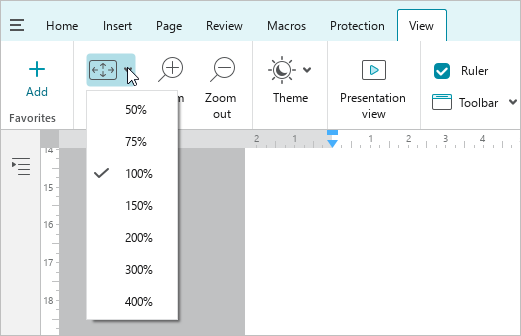

To set an arbitrary zoom value, on the Status bar, do one of the following:
–While holding the left mouse button, move the slider to the right or left to zoom in or out, respectively.

–Select the current zoom value, edit it manually, and press Enter.

To quickly set the zoom to 100%, do one of the following:
–When working in Windows or Linux, press Ctrl+0 (zero).
–When working in macOS, run the View > Zoom > Zoom 100% command from the command menu or press ⌘Cmd+0 (zero).
