Customize indents
In a list, you can customize the indents for:
–Numbers or bullets
–The text of the first line in the list item
–The text of the second and subsequent lines
To customize the indents, follow the steps below:
1.Specify the required items in the list:
•To customize the indents for all items on the same level, place the cursor in any of these items, or select these items without sub-items.
•To customize indents for several items in the same level, select those items without sub-items.
•To customize the indentation for a single item, select part or all of the text in the item.
2.Open the List settings window using one of the following methods:
•On the Home tab, in the Paragraph group, click the arrow to the right of the button corresponding to the current list:  Bulleted list or
  Numbered list. Select List settings.
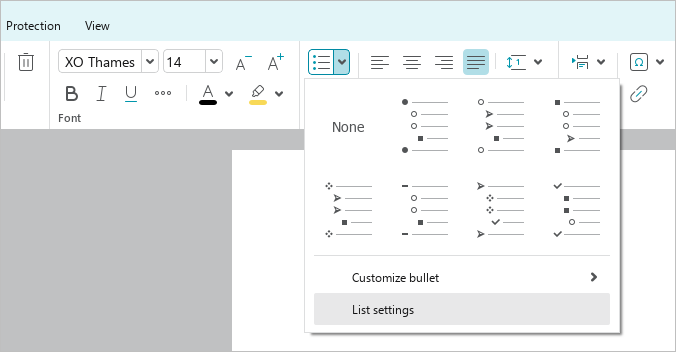
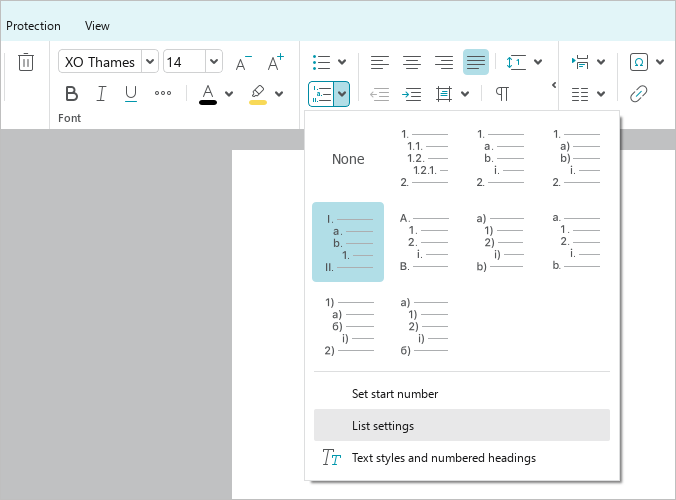
•Right-click to open the context menu and select the List settings command.
•When working in macOS, run the Format > List settings command from the command menu.
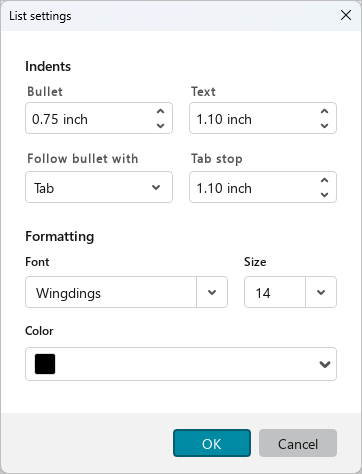
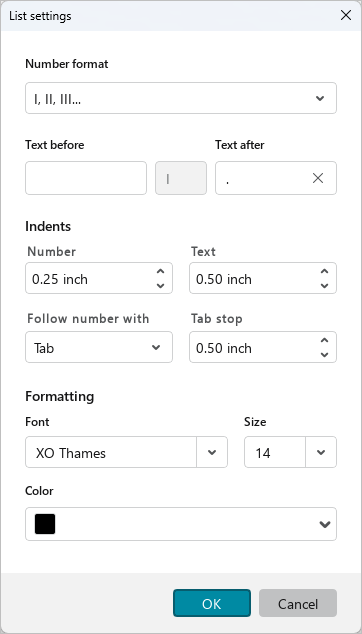
3.In the List settings window, in the Indents section, specify the required indents (see the table below).
4.Click OK.
Input box |
Description |
|---|---|
Number or Bullet |
The character of the number or bullet is shifted by the set value relative to: –Left margin of the page if the list is located in the text. –Left border of the shape or table cell where the list is located. You can enter the value manually, change it using the counter, the ↑ and ↓ keyboard keys, or by scrolling the mouse wheel. One step of increasing or decreasing the value is 0.1. To increase or decrease the value by 1, do one of the following: –Change the value by holding Shift down. –Press Page Up (Windows, Linux) or Fn+↑ (macOS) to increase the value. Press Page Down (Windows, Linux) or Fn+↓ (macOS) to decrease the value. |
Text |
The text of the list item, starting from the second line, is shifted by the specified value relative to: –Left margin of the page if the list is located in the text. –Left border of the shape or table cell where the list is located. You can enter or change the value in the same way as in the Number or Bullet box. |
Follow number with or Follow bullet with |
The type of non-printable character between the number/bullet and the text: –Tab. –Space. –Nothing: There is no character or space between the number/bullet and the text. Only one type of non-printable character can be specified at one level in the list. |
Tab stop |
The Tab stop box is used if Tab is selected in the Follow number with or Follow bullet with box. In the box you should specify the value of the tab stop, that is the position by which the text of the first line of the list item is shifted relative to: –Left margin of the page if the list is located in the text. –Left border of the shape or table cell where the list is located. You can enter or change the value in the same way as in the Number or Bullet box. To ensure that the first, second and subsequent lines of the list item are at the same level, you should specify the same values in the Tab stop and Text boxes. |
You can also customize the indents of the bullet/number and list text using rulers. In this case:
–Changing the indents using rulers does not change the values in the List settings window. The indent values displayed on the ruler refer to the paragraph settings.
–Changing the indents in the List settings window affects the placement of markers on the ruler.
