Document statistics
In a document or selected text fragment, the following statistics are automatically calculated:
–Pages
–Words
–Characters with spaces
–Characters without spaces
–Paragraphs
–Lines
The following rules apply when calculating:
–Text in headers and footers, the contents of comments and changes are not counted.
–Equations are counted when calculating paragraphs and lines, but are not counted when calculating characters and words.
–If there is a footnote character in the selected text, the footnote description is included in the calculation result.
–If text is selected in a header or footer, statistics are calculated only for that header or footer on the current page.
–When you edit or select text inside a content control or comment, statistics are calculated for the entire document.
The statistics for the entire document are calculated automatically. To calculate the statistics for a document fragment, select that fragment.
To view statistics, do one of the following:
–On the Review tab, click  Statistics.
–Press Ctrl+Shift+G (Windows, Linux) or ⇧Shift+⌘Cmd+G (macOS).
The Document/Fragment statistics window will open, displaying counters for pages, words, characters, paragraphs, and lines.
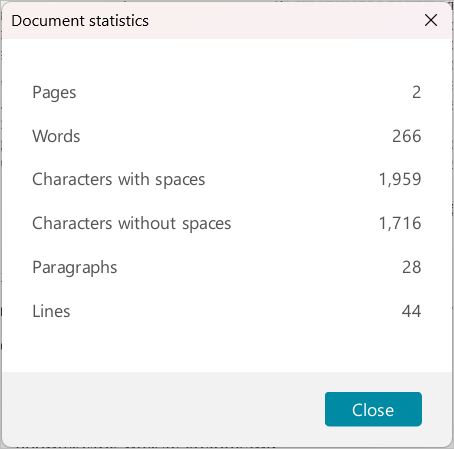
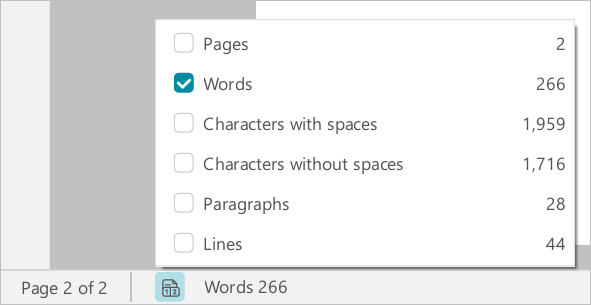
Counters can be displayed on the Status bar. By default, only the word counter is displayed there.
To configure the display of counters, do the following:
1.On the Status bar, click  Statistics.
2.Select the desired counters using the checkboxes.
You can select and copy:
–Individual counters on the Status bar.
–Individual or all counters in the Document/Fragment statistics window.
To select the counter on the Status bar, do one of the following:
–Select the counter using the mouse.
–Right-click the counter to open the context menu and run the Select all command.
–Click the counter and press Ctrl+A (Windows, Linux) or ⌘Cmd+A (macOS).
You can select one or more counters in the Document/Fragment statistics window using the mouse.
To select all counters, do one of the following:
–Right-click anywhere in the window to open the context menu and run the Select all command.
–Press Ctrl+A (Windows, Linux) or ⌘Cmd+A (macOS).
To copy the selected counters, do one of the following:
–Open the context menu by right-clicking anywhere in the Document/Fragment statistics window or the counter on the Status bar. Run the Copy command.
–Press Ctrl+C (Windows, Linux) or ⌘Cmd+C (macOS).
