Page setup
Page settings are configured when the document is prepared for printing. The page settings include:
–Page orientation
–Page size
–Margins
You can customize page settings for the entire document or for a specific section. For example, for a document page containing a picture or table, you can select landscape (vertical) orientation.
If you need to configure page settings for only part of the document, first follow these steps:
1.Add a section break before and after the required part of the document.
2.Place the cursor, select part of the text or the entire text in the required part of the document.
To configure page settings, follow these steps:
1.Open the Page setup window in one of the following ways:
•On the Page tab, click  Page setup.
•On the Home tab, in the File group, click the arrow to the right of the  Quick print button and select Page setup.
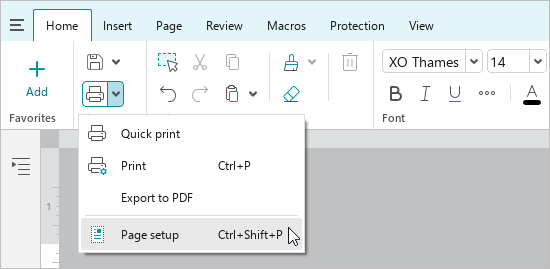
•When working in macOS, run the File > Page setup command from the command menu.
•Press Ctrl+Shift+P (Windows, Linux) or ⇧Shift+⌘Cmd+P (macOS).
2.In the Page setup window, select the area where the settings will be applied from the Apply to drop-down list:
•This section: Apply all subsequent changes to the selected part of the document, separated by section breaks.
•Whole document: Apply all subsequent changes to the entire document.
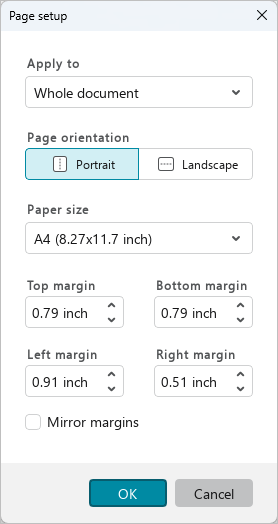
3.In the Orientation section, select the desired page orientation: Portrait (vertical) or Landscape (horizontal).
4.From the Paper size drop-down list, select the paper size on which the document will be printed.
5.Configure the document margins:
•To set the same margins for all pages of the document, specify their width in the Top margin, Bottom margin, Left margin, and Right margin input boxes.
•To set up margins for double-sided printing of a document whose pages will be bound together (for example, for a brochure or book), select the Mirror margins checkbox. This setting means that the margins of the left pages of the document will mirror the margins of its right pages.
In the Top margin and Bottom margin boxes, specify the width of the top and bottom margins of the document. In the Inside margin box, specify the width of the inside margins, that is, the margins closest to the binding. In the Outside margin box, specify the width of the outside margins, that is, the margins located at the front edge of the book or brochure.
6.Click OK.
