Quick parts
If your documents contain frequently repeated fragments of content, you can create quick parts from them. Quick parts allow you to quickly insert common contract phrases, billing information, contacts, equations, tables, and other elements into your document without having to create them from scratch.
You can create quick parts from fragments that are in the main body of the document, in headers or footers, or in footnotes. They can contain only text or an object (such as a shape or image) or a combination of both.
Limitations:
–Table of contents, margins, cross-references, page numbers, and controls cannot be included in quick parts.
–Comments and bookmarks from the selected fragment are not saved in the quick part.
–To preserve the formatting parameters of a heading, paragraph, or list, select the non-printable end-of-paragraph character (¶).
–To save the section settings, select the breaks before and after it.
–If columns are selected but the breaks before and after them are not selected, the text is saved in a single column in the quick part.
–Quick part with insertion parameter On new page is added To new paragraph when inserted into a table, shape, header or footer, or footnote, as these objects do not support page breaks.
–Quick parts are not saved in the normal.dot template.
To create a quick part, do the following:
1.Select the fragment of the document from which you want to create a quick part.
2.Run the command to create it in one of the following ways:
•On the Insert tab, click  Quick parts.
•Press Alt+F3 (Windows, Linux) or ⌥Option+F3 (macOS).
•If the application already has a collection of quick parts, click  Quick parts on the right sidebar. In the Quick parts pane, click Create quick part.
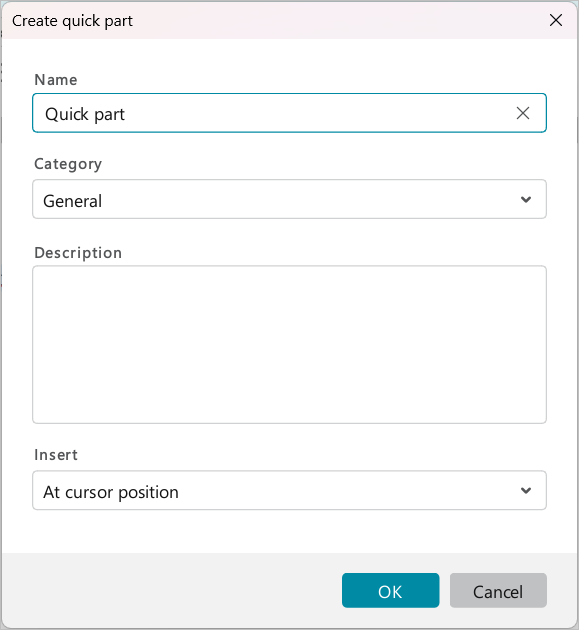
The Create quick part window will open.
By default, the first 15 characters of the selected text are inserted into the Name box. If needed, you can edit the name.
In the Category drop-down list, select an existing category to which you want to add the quick part, or create a new one. To create a new category, select Add category. In the Add category window, enter the name of the new category and click OK.
When creating a quick part, you can create several categories, but only the category to which the quick part is added will be saved.
In the Description box, enter a description of the category, if necessary.
In the Insert box, specify where the quick part should be inserted:
–At cursor position: Insert the quick part into the current cursor position.
–To new paragraph: Create a new paragraph and place a quick part in it.
–On a new page: Insert a page break and place the quick part in the first paragraph of the new page.
Click OK.
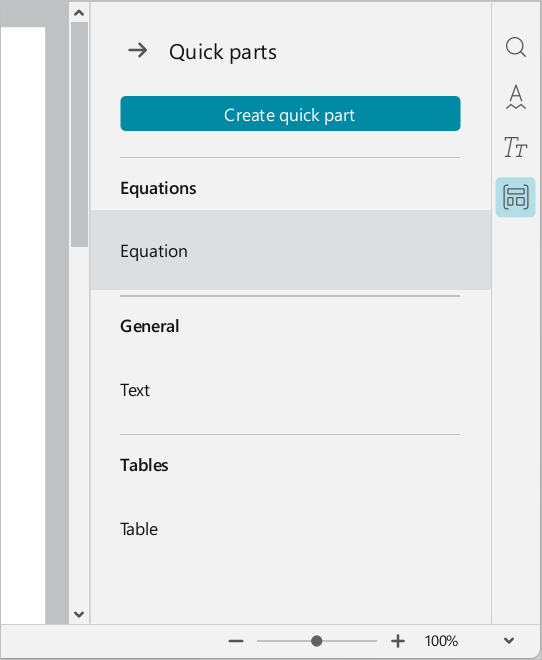
The Quick part pane is designed for working with quick parts. It opens when you click Quick parts on the right sidebar.
The quick parts in it are sorted into categories. The categories are displayed in alphabetical order.
You can save quick parts with the same names in different categories. However, identical names are not allowed within the same category.
If you delete all quick parts from the category you created, it will be deleted automatically. The General system category is not deleted.
To insert a quick part into the document, do the following:
1.Place the cursor in the document where you want to insert the quick part, or after which you want to create a new paragraph/page for inserting the quick part. If you need to replace a fragment of text with a quick part, select that fragment.
2.On the right sidebar, click Quick parts to open the Quick parts pane.
3.Insert a quick part in one of the following ways:
•Double-click the quick part with your mouse.
•Hover the cursor over the desired quick part, click the  button, and run the Insert to document command.
To edit a quick part, do the following:
1.On the right sidebar, click Quick parts.
2.In the Quick part pane, hover your mouse cursor over the desired quick part, click the button, and run the Edit command.
3.In the Edit quick part window, change the required parameters and click OK.
To delete a quick part, do the following:
1.On the right sidebar, click Quick parts.
2.In the Quick part pane, hover your mouse cursor over the desired quick part, click the button, and run the Delete command.
3.In the Delete quick part window, click Delete.
You can move between sections of the Quick parts pane from top to bottom using Tab and from bottom to top using Shift+Tab keyboard shortcut. You can navigate between quick parts in a selected category using the arrow keys.
To close the Quick parts pane, do one of the following:
–At the top of the pane, click  .
.
–On the right sidebar, click Quick parts.
