Insert a link to a web page or email address
- General information
- Installation and launch
- Interface overview
- Screen elements
- Command menu
- Main menu
- Toolbar
- Change the display mode
- Hide or display tool group titles
- Hide or display the content of tool groups
- Customize the composition of the Favorites group of tools
- Add a button
- Change a button to run a macro
- Move an element
- Remove an element
- Clear the Favorites group
- Hide or display the Favorites group
- Formula bar
- Quick actions pane
- Workspace
- Sheet pane
- Sidebar
- Status bar
- Focus on cell
- Theme
- Language
- Files
- New file
- Save as template
- New from template
- Open a file
- File in .html, .htm, .xls format
- File in .xlsb format
- File in .xml format
- View-only file
- File is used by another application or user
- Convert a file
- Recent files
- Send a file
- Preview and print
- Save a file
- Autorecovery of documents
- Close a file
- Sheets
- Insert a sheet
- Switch between sheets
- Rename a sheet
- Hide or unhide sheets
- Change the color of the sheet tab
- Duplicate a sheet
- Copy a sheet
- Move a sheet
- Select a sheet from the list
- Zoom a sheet
- Hide or display zero values
- Delete a sheet
- Actions with multiple sheets
- Cells, columns, and rows
- Expand the workspace
- Select a cell range
- Active cell of the range
- Select colums or rows
- Multiple selection
- Resize cells
- Resize a column or row
- Merge or unmerge cells
- Insert columns or rows
- Hide or unhide a column or row
- Freeze columns, rows, or area
- Group columns or rows
- Delete columns or rows
- Data
- Enter data
- Enter data in a cell
- Automatically adjust cell width
- Floating cell
- Autofill cells
- Text formatting of formulas and numbers
- Sort and filter
- Create a range of filtering
- Sort
- Single-level sorting
- Multi-level sorting
- Filter
- Filter by values
- Filter by cell fill color
- Filter by condition
- Filter by numeric values
- Filter by date
- Filter by text
- Filter using the advanced filter
- Transfer of conditions between filters
- Use of wildcards
- Clear filter
- Copy and paste filtered data
- Reapply a filter
- Finishing work with sorting and filtering range
- Split into columns
- Data validation
- Add data validation
- Edit data validation
- Delete data validation
- Actions with cells containing data validation
- Enter a date
- Enter a value in a cell with a drop-down list
- Track and view changes
- Find and replace
- Delete data
- Remove duplicates
- Links
- Insert a link to a web page or email address
- Insert a link to a place in the document
- Insert a link to a file
- Quick link insertion
- Follow the link
- Copy a link
- Edit a link
- Delete a link
- Keyboard shortcuts for moving between window elements
- Notes
- Special characters
- Current date or time
- Spelling and grammar
- Number formats
- Define cell format
- Open number format settings window
- General
- Number
- Split the number into digit groups
- Change the number of decimal places
- Customize negative number display style
- Currency
- Select a currency code or symbol
- Change the number of decimal places
- Customize negative number display style
- Accounting
- Date, Time, and Date and time
- Percentage
- Fraction
- Scientific
- Text
- Formulas and functions
- Formulas and functions basics
- Order of operations in a formula
- Reference cells and cell ranges
- Recalculation of formulas
- Select formula recalculation mode
- Recalculation of formulas in automatic mode
- Recalculate formulas manually
- Recalculate formulas when saving a document
- Automatic calculation
- Enter functions
- Function wizard
- View and edit formulas
- View the structure of formulas
- Specifics of work in the collaborative edit mode
- Replace a formula with its result
- Names in formulas and functions
- Reference to data in another document
- Structured references
- Array formulas
- Calculation operators
- Tables
- Create a table
- Open the table settings pane
- Customize the appearance
- Rename the table
- Automatic table expansion
- Add a calculated column
- Select the type of calculation in the total row
- Convert a table to a regular range
- Delete a table
- Pivot tables
- Create a pivot table
- Create a pivot table based on the data in the current file
- Create a pivot table based on data from an external source
- Open the pivot table settings pane
- Define the structure of the pivot table
- Add fields
- Change the field order in a section
- Rename a field
- Select value calculation functions
- Delete a pivot table field
- Customize the pivot table parameters
- Change the data source
- Select the pivot table layout
- Customize the display of grand totals
- Customize the display of subtotals
- Enable viewing of cell details
- Edit captions
- Manage external sources
- View the list of external sources
- View information about an external source
- Change information about an external source
- Add an external source
- Delete an external source
- Filter data in a pivot table
- Filter data using the report filter
- Filter rows and columns by values
- Filter rows and columns by condition
- Clear the filter
- Sort data in a pivot table
- Collapse or expand the elements of pivot table
- View cell details
- Refresh a pivot table
- Copy a pivot table
- Delete a pivot table
- Charts
- Insert a chart
- Open the chart settings pane
- Chart settings
- Open chart elements settings
- Customize the appearance of an element
- Customize element text formatting
- Adjust the parameters of axes and gridlines
- Hide or display an element
- Move a chart
- Move the chart title
- Copy, cut or insert a chart
- Change chart type
- Resize a chart
- Change data in chart
- Change the data range for the chart
- Delete a chart or a chart element
- Images
- Insert an image
- Anchor graphic objects to cells
- Replace an image
- Resize an image
- Move an image
- Save an image
- Delete an image
- Embedded objects
- Shapes
- Insert a shape
- Insert a text box
- Fill a shape
- Outline
- Select the color of the shape outline
- Select the thickness and line type of the shape outline
- Apply outline settings of the previous shape
- Delete shape outline
- Line style
- Select a line color
- Select the thickness and line type
- Apply the style of the previous line
- Reset the line style
- Resize a shape
- Fit shape size to text
- Change line length and angle
- Select arrowhead type
- Move a shape
- Delete a shape
- Format
- Font
- Font size
- Text formatting
- Text color
- Highlight color
- Alignment
- Rotate text
- Wrap text
- Character spacing
- Cell fill color
- Cell borders
- Conditional formatting
- Create a formatting rule
- Conditional formatting pane
- Create a formatting rule
- Create a rule of the Regular highlighting type
- Create a rule of the Color scale type
- Create a rule of the Data bars type
- Create a rule of the Icons type
- Display and filter a list
- Move a rule in the list
- Edit rules
- Duplicate rules
- Clear formatting rules
- Copy and apply formatting
- Clear formatting
- Edit content
- Undo and redo
- Cut or copy data
- Paste the last cut or copied data
- Paste data while maintaining the original formatting
- Paste data without preserving the original formatting
- Insert a formula
- Insert the result of the formula calculation
- Paste data and transpose
- Clipboard history
- Change paste parameters
- Cloud actions
- Log in
- Server connection indicator and server certificate
- Create a file or folder
- Open a file
- Save the file to the cloud
- Create a local copy
- Upload a file
- Download a file or folder
- Delete a file
- Restore a file or folder
- Shared access to files
- Revoke own access
- Log out
- Automation tools
- AI assistant
- Document protection
- Functions manual
- Financial functions
- Date and time functions
- Math and trig functions
- ABS
- ACOS
- ACOSH
- ACOT
- ASIN
- ATAN
- ATAN2
- ATANH
- COSH
- COTH
- CSC
- CSCH
- DEGREES
- EXP
- FACT
- FACTDOUBLE
- INT
- LN
- LOG
- LOG10
- PI
- POWER
- PRODUCT
- QUOTIENT
- RAND
- ROUND
- ROUNDDOWN
- ROUNDUP
- SEC
- SECH
- SINH
- SQRT
- SQRTPI
- SUBTOTAL
- SUM
- SUMIF
- SUMIFS
- SUMPRODUCT
- SUMSQ
- TANH
- Statistical functions
- AVERAGE
- AVERAGEIF
- CORREL
- COUNT
- COUNTA
- COUNTBLANK
- COUNTIF
- COUNTIFS
- F.DIST
- F.DIST.RT
- FISHER
- LARGE
- LINEST
- MAX
- MEDIAN
- MIN
- MODE
- NORM.DIST
- RANK.EQ
- SMALL
- STDEV.S
- VAR
- VARA
- VARPA
- Lookup and reference functions
- ADDRESS
- AREAS
- CHOOSE
- COLUMN
- COLUMNS
- GETPIVOTDATA
- HLOOKUP
- HYPERLINK
- INDEX
- INDIRECT
- LOOKUP
- MATCH
- OFFSET
- ROW
- ROWS
- TRANSPOSE
- VLOOKUP
- Database functions
- Text functions
- ASC
- CLEAN
- CODE
- CONCATENATE
- DBCS
- EXACT
- FIND
- FINDB
- JIS
- LEFT
- LEFTB
- LEN
- LENB
- LOWER
- MID
- MIDB
- PROPER
- RIGHT
- RIGHTB
- SEARCH
- SEARCHB
- SUBSTITUTE
- TEXT
- TRIM
- UNICODE
- UPPER
- VALUE
- Logical functions
- Information functions
- Engineering functions
- Additional information
MySpreadsheet recognizes and makes active links that start with www, http, https, and email addresses.
Examples of the links:
–www.website.ru
–http://website.ru
–https://website.com
–mailto:user@domain.ru
–user.name@domain.com
A link such as mailto:user@domain.ru may also contain a subject line, the text of the email, and email addresses for sending copy and blind copy. For example,
mailto:user@domain.ru?subject=This%20is%20the%20subject&cc=user2@domain.ru&body=This%20is%20the%20body.
The link can be displayed in the document as follows:
–URL, for example, http://www.website.ru
–A text, for example, a link
To add a URL link to a document, do one of the following:
–Enter the link manually and press Space or Enter.
–Copy the link from the source. Switch to the cell edit mode, insert the link and press Space or Enter.
–Copy the link from the source. Switch to cell editing mode and press Ctrl+Shift+V (Windows, Linux) or ⇧Shift+⌘Cmd+V(macOS).
To add a text link to a document, follow these steps:
1.Copy the link from the source.
2.Specify the place to insert the link in one of the following ways:
•To link the entire text in a cell, select this cell.
•To format a single word in the cell text as a link, place the cursor in the word or select the entire word.
•To format a part of the text in a cell as a link, select the entire text part.
•To insert a word or text with a link to an empty cell, select the cell or place the cursor in it.
3.Insert the link in one of the following ways:
•On the Insert tab, click  Link.
Link.
•When working in macOS, select the Insert > Link command from the command menu.
•Right-click to open the context menu and run the Insert link command.
•Press Ctrl+K (Windows, Linux) or ⌘Cmd+K(macOS).
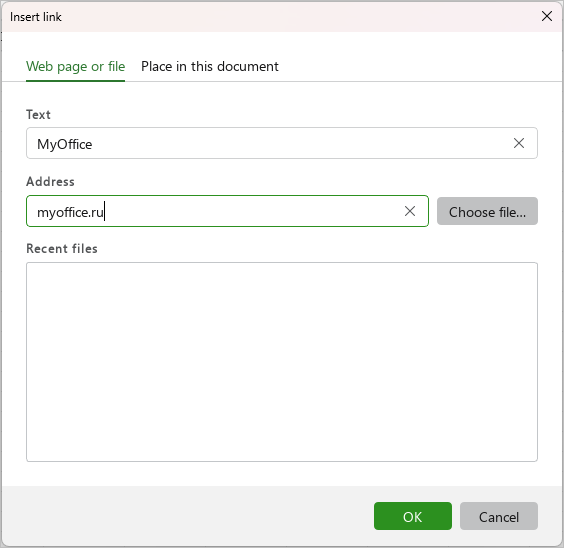
4.In the Insert link window, on the Web page or file tab:
•If the Address box is blank, paste a link into it. By default, the link copied from the source in the first step is automatically inserted into the Address box.
•If the Text box is not filled in, enter the text that will be displayed instead of the link. By default, text from the selected cell or the text selected in the cell or the word on which the cursor is placed is automatically inserted into the Text box.
•Click OK.
Insert a link to a place in the document
