Remove duplicates
If several users worked on one spreadsheet, or if it was created from several spreadsheets, it is very likely to contain repetitive data. These data can be removed from the table automatically using the Remove duplicates command.
The search for duplicates in a spreadsheet or a specified range is carried out line by line. An example is shown in the figure: the rows that will be deleted if one column (left) or two columns (right) are selected for the search are highlighted in red.
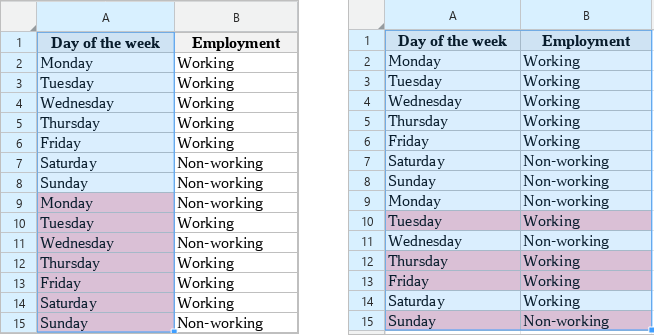
When removing duplicates, only the first variant of the found matches is saved, the rest are deleted.
Searching for and deleting duplicates is not carried out if:
•The selected range contains:
oAn array formula.
oCells of the pivot table.
oA table or a part of it. If the range contains only table cells, duplicates are searched and replaced.
oGrouped columns or rows: to find duplicates, you need to clear the grouping.
oMerged cells: to find duplicates, each cell in the range needs to occupy the same number of rows and columns.
•There is a “break” between the selected cells/rows/columns/ranges. For example, columns A and C are selected, but column B is not selected.
•The document sheet is protected.
If the selected range contains hidden or filtered rows or columns, the values in them are ignored when removing duplicates. After removing duplicates, hidden rows and columns remain hidden. In the cells of hidden rows, the values may change because the cell data is shifted upward after the duplicates are removed.
If the selected range contains cells with data validation conditions and the values in those cells are duplicates, not only the values but also the data validation conditions are deleted.
To remove duplicates, follow the steps below:
1.Select a range to search for and remove duplicates.
2.Open the Remove duplicates window using one of the following methods:
•On the Data tab, click  Remove duplicates.
•When working in macOS, select the Data > Remove duplicates command from the command menu.
3.In the Remove duplicates window, check the With header row box, if the selected range contains a row with column names. This line will be excluded from the selected range.
4.Check the Expand automatically box if you want to include data adjacent to the selected range in the search range that meets the duplicate search and removal conditions (see the restrictions above).
5.In the Columns area, select the columns that constitute the search key. In the example in the figure above, if you select one column, all repeating names of days of the week from column “A” will be considered duplicates. If you select two columns, the duplicates will be the repeated combinations of “Day of the week” - “Employment” from columns “A” and “B”.
6.Click OK.
When duplicates are successfully deleted, a pop-up message will be displayed: “N duplicate values found and removed. M unique values remain.”
If there are no duplicates in the selected range, a pop-up message “No duplicates found” will be displayed.
