View an email
When a new email is received, in the Navigation bar, in the Inbox line, the value of the unread emails counter increases by 1. In the workspace, the headers of unread emails (sender and subject) are highlighted in bold.
If custom filters have been configured, a new email can automatically arrive in other folders, for which an unread message counter will also be displayed.
To view an email, select it from the list of emails in the workspace. Left‑click anywhere in the message mini‑pane, but not the sender's avatar. The message mini‑pane will be highlighted in color, and the contents of the email will be displayed in the Reading pane. The email will be considered read.
Interface of the Reading pane
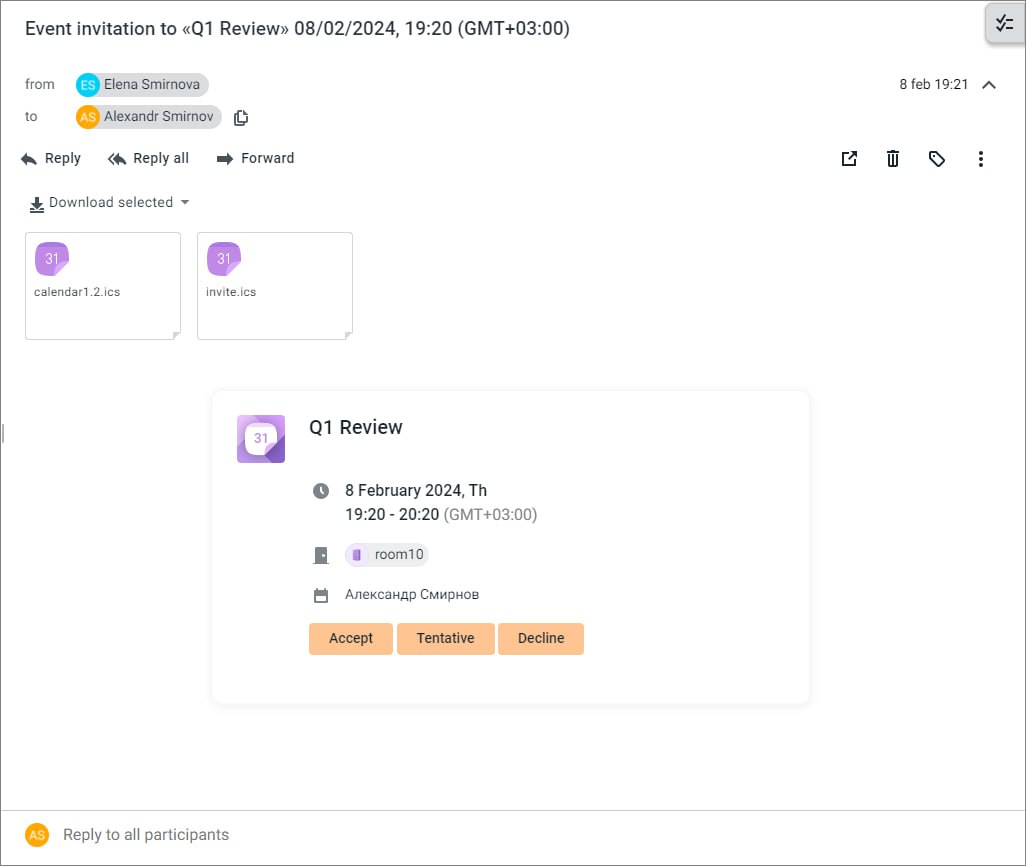
The main areas of an email include: 1.The subject of the email. 2.Information about the sender and recipients, the level of email sensitivity (if it was specified by the sender), the date and time the email was sent. Information about recipients can be displayed/hidden using the 5.The body of the email. 6.A field for a quick response to an email.
The
When you left-click the avatar or the names of the sender and recipients, a pop-up window with contact details appears:
The contact details window displays the following buttons: • • If the contact is not in the address book, the When you navigate to a contact, the Personal address book opens with the newly created contact open.
|

 button to the right of the date and time of the email.



Message toolbar
The message toolbar contains the following buttons: 1. 2. 3. 4. 5. 7. •Forward as attachment: Forward an email as an attachment to another email. •Print: Print the email. •Download as eml: Download the email as an eml file. •Create event: Create an event from the email. •Show email headers: Show email headers.
|