Insert a link to a web page or email address
You can add a link to a web page or an email address to the presentation. Links with the following structure are supported:
–www.website.ru
–http://website.ru
–https://website.com
–mailto:user@domain.ru
–user.name@domain.com
A link such as mailto:user@domain.ru may also contain a subject line, the text of the email, and email addresses for sending copy and blind copy. For example,
mailto:user@domain.ru?subject=This%20is%20the%20subject&cc=user2@domain.ru&body=This%20is%20the%20body.
You can add a link to text or attach it to a shape or image.
A text link can be represented as:
–URL: For example, http://www.website.ru.
–Arbitrary text: For example, link.
To add a link as a URL to your text, do one of the following:
–Enter the link manually and press Space or Enter.
–Copy the link from the source, paste it into the desired location in the presentation and press Space or Enter.
–Copy the link from the source and place the cursor at the desired location in your presentation. Press Ctrl+Shift+V (Windows, Linux) or ⇧Shift+⌘Cmd+V (macOS).
To add a link in the form of text to a presentation or to attach a link to an object, follow these steps:
1.Copy the link from the source.
2.Specify the place to insert the link in one of the following ways:
•To format a typed word as a link, place the cursor in the word or select the entire word. To format a typed text fragment as a link, select the whole text fragment.
•To insert a word or text fragment with a link to a presentation that has not yet been typed, place the cursor at the desired location in the presentation. If you want to insert a word or a text fragment with a link into an empty table cell, select the cell or place the cursor in it.
•To attach a link to an object, select that object.
3.Insert the link in one of the following ways:
•On the Insert tab, click  Link.
Link.
•Right-click to open the context menu and select the Insert link command.
•When working in macOS, run the Insert > Link command from the command menu.
•Press Ctrl+K (Windows, Linux) or ⌘Cmd+K (macOS).
4.In the Insert link window, on the Web page or file tab:
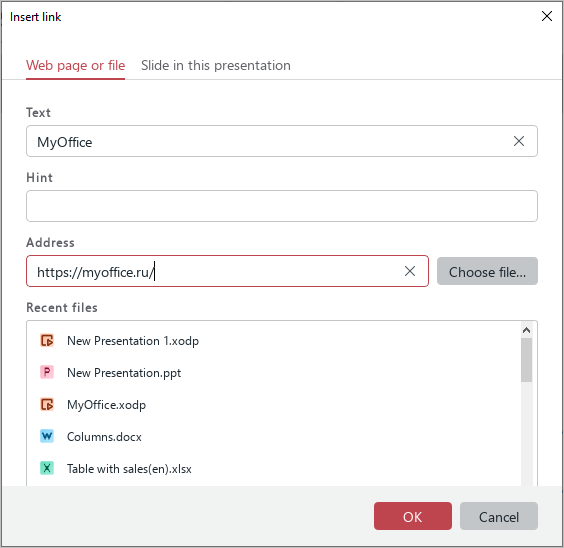
•If the Address field is blank, paste a link into it. By default, the link copied from the source in the first step is automatically inserted into the Address field.
•If you did not enter text for the link in the first step, enter it in the Text box. By default, the Text box is automatically filled with the word on which the cursor is placed, the selected word, or the selected text fragment. If the link is attached to an object, this box is not displayed.
•In the Hint box, enter the text of the tooltip, if necessary. A tooltip will appear when the cursor is placed over the text link or when the object to which the link is attached is selected.
•Click OK.
