Save the file to the cloud
You can save a file opened in MyPresentation desktop application to the cloud.
To save a file to the cloud, do the following:
–Click the  button and run the Save to cloud command from the main menu.
–On the Home tab, in the File group, click the arrow to the right of the  Save button and select Save to cloud.
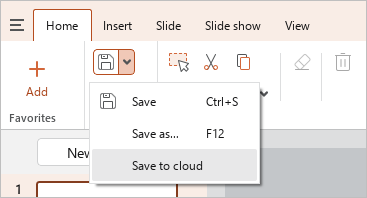
The cloud storage explorer window opens.
Select the section where you want to save the file. The choice of section affects the level of access that will be granted to the file:
–When you save a file to My files section, you are granted the Owner access level.
–When you save a file to Common folders section, you are granted the access level of that section: Edit or Manage.
If you want to create a new folder to save the file in the selected section, click New folder. In the New folder in cloud window, specify a folder name and click OK.
Change the file name and format if needed. The available formats for saving to the cloud are .xodp, .odp, .pptx.
Click Save.

The document will be saved, opened in the cloud, and closed in the desktop application.
If a file you saved and opened in the cloud needs to be saved in a different cloud storage section or with a different name or extension, do one of the following:
1.Run the save command in one of the following ways:
•Click the button and run the Save to cloud as command from the main menu.
•On the Home tab, in the File group, click  Save to cloud as or click the arrow to the right of the Save button and run the Save to cloud as command.
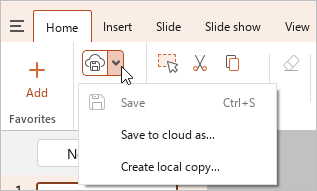
2.Follow the steps described above to save the file.
