Zoom
By default, the scale of slides is adjusted to the size of the workspace in the main application window. If necessary, you can zoom in or out the document.
To zoom in or out by 10%, do one of the following:
–On the View tab, click  Zoom in or
  Zoom out.
–On the Status bar, click  Zoom in or
  Zoom out.
–When working in macOS, run the View > Zoom > Zoom in or Zoom out command from the command menu.
–Press Ctrl (Windows, Linux) or ⌘Cmd (macOS) and rotate the scroll wheel forward to zoom in, or backward to zoom out.

To select a zoom value from the preset values, follow the steps below:
1.On the View tab, click the arrow to the right of the  Zoom or, on the Status bar, click the
  button to the right of the current zoom value.
2.Select the desired value from the drop-down list.
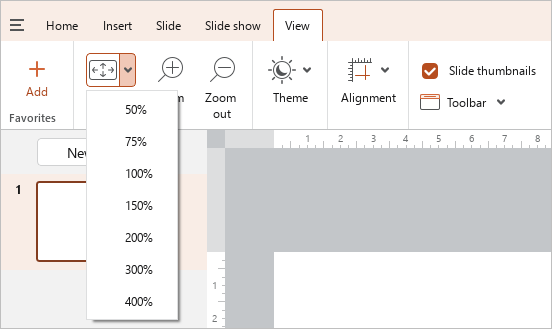
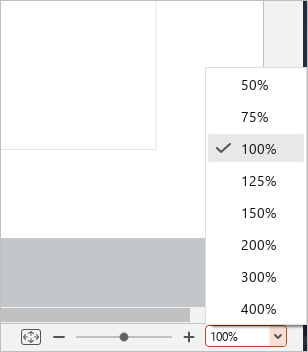
To set an arbitrary zoom value, on the Status bar, do one of the following:
–While holding the left mouse button, move the slider to the right or left to zoom in or out, respectively.

–Select the current zoom value, edit it manually, and press Enter.

To quickly adjust a slide to a scale of 100%, do one of the following:
–When working in Windows or Linux, press Ctrl+0 (zero).
–When working in macOS, run the View > Zoom > Zoom 100% command from the command menu or press ⌘Cmd+0 (zero).
To adjust the slide scale to the size of the workspace, do one of the following:
–On the View tab, click Zoom.
–On the Status bar, click  .
.
–When working in macOS, run the View > Zoom > Fit to window size command from the command menu.
