Open a file
To open a file from the cloud, follow these steps:
1.Open the explorer of the cloud in one of the following ways:
•Click the  button and run the Open from cloud command from the main menu.
•When working in macOS, run File > Open from cloud command from the command menu.
•Press Ctrl+Shift+O (Windows, Linux) or ⇧Shift+⌘Cmd+O (macOS).
2.On the left side of the window that opens, select the section containing the file you want to open.

3.If you want to filter files by format, select that format from the All documents drop-down list.
4.Select the file by double-clicking or select the file by single-clicking and click Open.
The file will open in a new window.
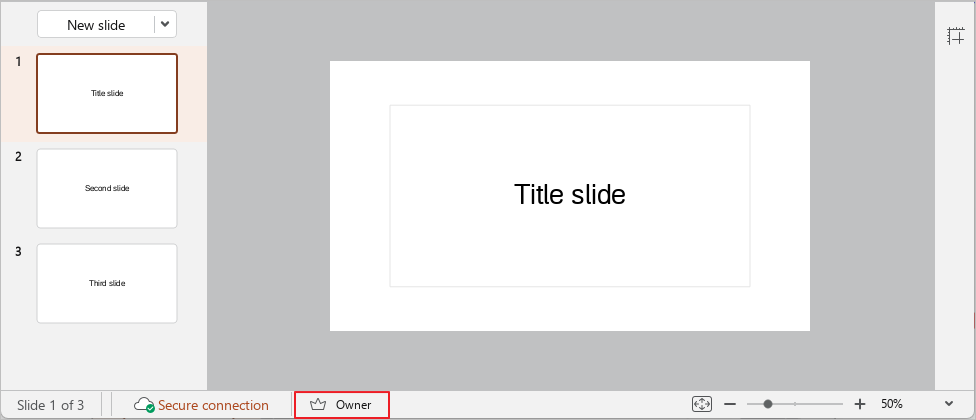
Your level of access to a file is displayed in the Status bar and depends on who created the file and in which section:
–If the file is created in My files section, the Owner access level is granted.
–If you created the file in the Common folders section, the access level of this section is given: Edit or Manage.
–If the file was created by another user and is located in the Shared section or in Common folders, the access level specified by the document author is granted: View, Edit, or Manage.
In the view mode, you cannot make changes to the document or change its formatting. If necessary, you can create a copy of this document that can be edited. To do this, on the Toolbar, click Edit a copy.

A copy of the document is created in the My files cloud storage folder. It is automatically named Copy - <original name (n)>, where (n) is the copy number. When you create a copy, the original document is automatically closed and a copy of the document is opened.
In the View and Manage mode, you can access the document without restrictions. All changes will be automatically saved to the cloud. There is no need to additionally save edits.
If you do not perform any actions on a document for a long time, the session is automatically terminated. A dialog box appears on the screen, which you can use to start a new session with this document or select another document to work with. If you want to close the document, click Cancel.
