Create a task with additional parameters
1.Open the task parameter input pane using any of the following methods:
•At quick creation of a task, click All parameters:
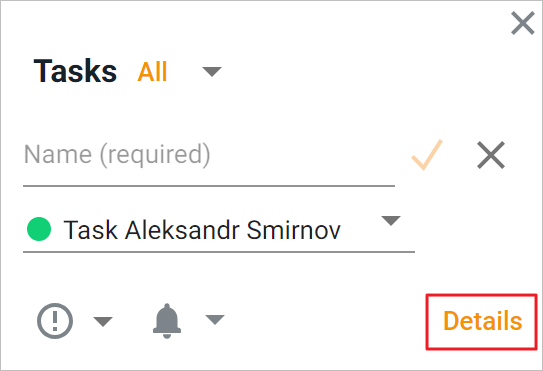
•Hover the cursor over the name of the task list where you need to create a new task, and click the button that appears: .
.
2.Specify the required task parameters:
•Name: Required field.
•Description: Maximum text length is 500 characters.
•Add a due date: Click the button and specify the date and time. To delete the specified due date, click the  button on the right.
•Add reminder: Click the button and specify the date and time of the reminder in the fields that appear. To delete the reminder, click the button on the right.
•List: If there are multiple task lists, select the list in which the task will be created.
•Importance: Select a priority from the list: Low, Normal or High.
•Assignee: Enter the assignee's email address in the field or select it from the drop-down list that appears when entering the first characters in the field.
•Location: Maximum text length in the field is 500 characters.
•Upload file: Click the button and perform similar actions adding an attachment to the email. Files or links to files attached to the task will be displayed as thumbnails. You can delete the attachment by clicking the button  .
.
3.Click Create.
To interrupt the creation process and close the pane, click the button  in the upper left corner of the task parameter input pane.
If an assignee was assigned to the task, after the task is created, it will be automatically added to their main task list. The assignee will automatically receive a generated email with information about the task assignment and key details about it.
