Create a filter from an email
You can create a filter based on an email that is in any folder except the Drafts folder.
When creating a filter from an email, some fields on the filter creation form will be automatically filled in with data taken from the email, which will simplify the work on creating the filter.
To create a filter based on an email:
1.Select the email. The email will open in the Reading pane, or open the email in a new tab.
2.On the Toolbar of the email in the Reading pane, click and select Create filter in the menu that opens.
In a new browser tab, the user account settings section opens with the Filters subsection and the New filter creation form open. Some of the fields will be filled in with data from the email. The combination of fields filled in depends on the folder where the message is located. For example, if the email is in the Inbox, the form will already have the following values:
–If: the From field contains the email address or the name of the email author from which the filter is created.
–Then: Move to folder.
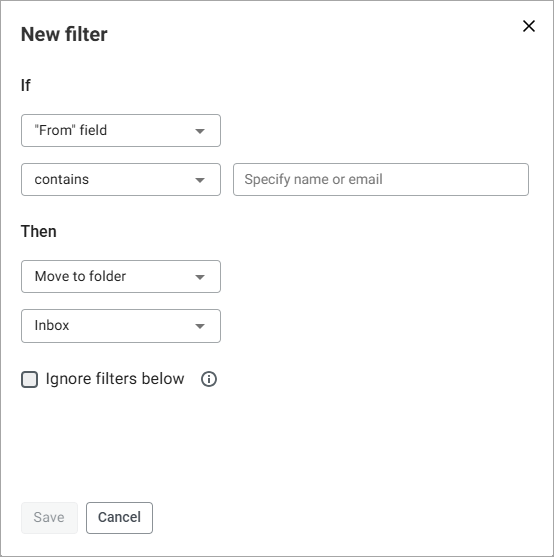
3.If needed, edit the filter settings that were set automatically.
4.Specify the values in the fields that were not filled in automatically.
5.Click Save to close the filter creation form and the filter will appear in the filter list.
