Create a filter
To create an email filter, do the following:
1.Click the Add filter button. The New filter window will open:
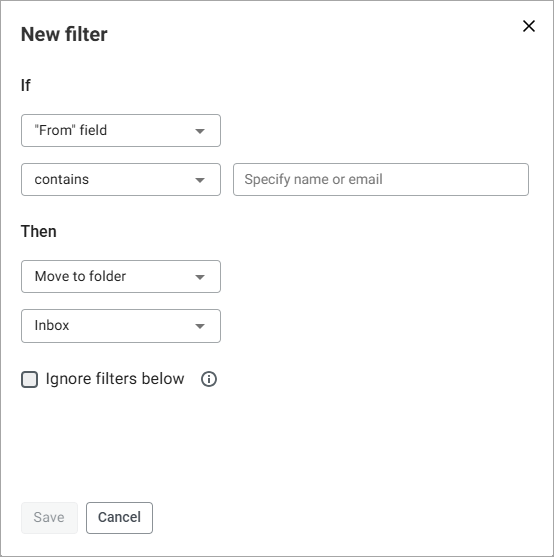
2.Set the condition for the filter action in the If field group:
•In the drop-down list "From" field, select the email parameter that should be checked by the filter. Depending on which parameter was selected, other fields in the group If will remain in the window (for example, for parameters "From" field, "To" field, Topic) or will be hidden (for example, for parameters) Has attachments, Has calendar event).
•If the fields in the group If are displayed, select the required verification condition from the drop-down list: contains, matches or doesn't contain and enter the condition text into the fields intended for this purpose.
3.Set the email processing rule in the field group Then. To do this, in the drop-down list Move to folder select the required action for emails that meet the condition specified above. Then, if the action is selected:
•Move to folder: In the field below, specify the folder for moving emails: Inbox, Sent, Drafts, Spam, Trash or folders created by the user.
•Forward to or Notify: In the field below, specify the recipient (email address).
•Send auto-reply: In the field below, enter the auto-reply text.
•For other actions, nothing needs to be specified, so the field below is not displayed.
4.If necessary, check the box Ignore filters below. If the check box is selected, then the filters following in the list will not be applied to the email that meets the filter condition.
5.Click Save. The filter creation window will close, and the filter will appear in filter list.
If a filter is on, all emails that meet the filter condition will be processed according to the rule specified in the filter.
Also possible create a filter from an email.
