Add an email
To add an account (internal or external), click the button Add email.
Add internal account
In the opened window, do the following:
1. Specify the account parameters:
•Email address
•Account password
•Display name in email
2. Click OK. If the account is recognized as a MyOffice account, the information about the mail server settings, such as the addresses and ports of POP, IMAP, and SMTP servers, will be automatically linked.
Add external account
In the opened window, do the following:
1. Specify the account parameters:
•Email address
•Account password
•Display name in email
2. click OK. If the account is recognized as external, fields for entering additional settings will appear on the screen.
3. Specify the server settings POP, IMAP and SMTP.
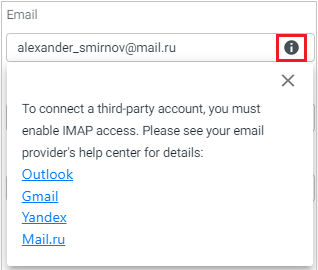
For a third-party account, configure IMAP access. For more information on the settings of the most common email services, click  .
.
4. Click OK . After connecting, a message "Account connected successfully" will appear.
New account and its settings will be displayed on the Navigation bar.
For a new account, an avatar can be configured. Uploading, changing, and deleting the avatar is similar to working with the avatar for the main user.
