Common
The Common section settings of MyOffice Mail web application allow to configure the following parameters:
–Language: Selection of the interface language (if integrated with MyOffice Documents Online, the language selection is not available and the interface language is selected in the user profile of MyOffice Documents Online).
–Time format: Selection of time display format.
Other date display formats cannot be changed by the user.
–Date format: Selection of date display format.
–Notifications:
The user can receive notifications about new emails, upcoming events, or tasks. Such notifications will be displayed even if the Mail tab is collapsed.
To configure notifications, you need to check the following fields:
–New messages: To receive notifications about new emails as soon as they arrive in the inbox.
–Event reminders: To receive notifications about upcoming events.
–Task reminders: To receive notifications about current and new tasks.
Information about working with notifications
Notifications appear on the right side of the screen and automatically hide after 60 seconds. To manually close a notification, click in the upper right corner of the notification.
Notification of a new email has a subject line New email, contains the sender's name, as well as the subject of the email. In some cases, the first lines of the email will be displayed. Clicking on the notification will open the received email.
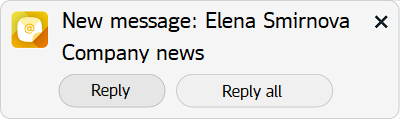
The notification pane contains the following buttons:
–Reply: Reply only to the sender of the email.
–Reply to all: Reply to all participants in the thread.
When clicking on Reply / Reply all button, a window will open for creating a new email with a quote from the sender's email.
Notification of an event have a title Event reminder, contains the topic, specifies the period before the event starts, and the event time.. Clicking on the notification will open the pane for this event.
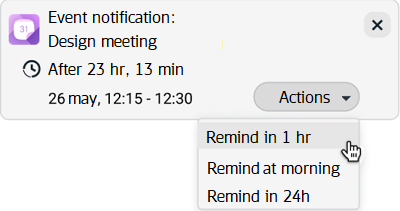
The Actions button opens a menu with the following commands:
–Remind in 1 hour: Display a repeat notification in one hour.
–Remind in the morning: Display a repeat notification the morning of the next day.
–Remind in 24 hours: Display a repeat notification in 24 hours.
After selecting the command, the pane will be closed.
Task Notification has a title Task reminder, contains topic, deadline, if it was set, button and the button Actions.
Button Actions on the notification panel opens a menu with commands:
–Completed — mark the task as completed.
–Remind in 1 hour — issue a repeat notification in 1 hour.
–Remind in the morning — issue a repeat notification the morning of the next day.
–Remind in 24 hours — issue a repeat notification in 24 hours.
After selecting the command, the panel will be closed.
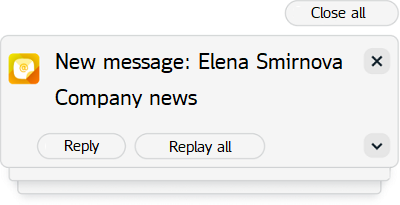
When multiple notifications are received simultaneously, they will be combined into a thread:
–To expand the notification thread, click  in the lower right corner of the top notification. To collapse the thread again, click the button again.
–To close the entire notification thread, click Close all.
To enable notifications in the browser, use one of the following methods:
–Click Allow in the notification display request window.
–Click on the lock icon in the web browser's address bar, set the permission to receive notifications.
–Go to the browser settings (Security section), allow notifications for a specific site.
