Calendar
The Calendar settings of MyOffice Mail web application contains the settings of the section Calendar:
–Week starts on: Selection of the first day of the work week (Saturday, Sunday, Monday).
–Display Saturday and Sunday: Show / hide weekends when displaying the work week in the calendar. If Saturday or Sunday is selected as the start of the week, the flag Display Saturday and Sunday will be automatically hidden.
–Mark Saturday and Sunday: Highlighting Saturdays and Sundays in a different color in the calendar. The Highlight Saturday and Sunday check box is displayed only when the Display Saturday and Sunday check box is selected.
–Week number: Display of the current week number in the calendar.
–Working hours: Highlighting working hours in the calendar. When the check box is set to Mark working hours, fields for input are displayed start and end time of the workday; the time should be selected from the drop-down lists.
–Timezone: Manually selecting a time zone. The time zone selection field is not displayed if the Automatically detect timezone check box is selected.
–Show by default: Selection of the default calendar display type (day, week, month).
–Buffer time: Setting the interval between events.
To save the settings after changing the parameters, click Save at the bottom of the Calendar settings pane.
Set buffer time
Buffer time (the break between events the user is invited to) is displayed in Scheduler events as occupied time. The break is added to the event time in Scheduler of the user, while the calendar only displays the actual event time, without information that the user has set buffer time for themselves.
To set a break between events during which you cannot be invited to the next event, do the following:
1.Check the box set the interval.
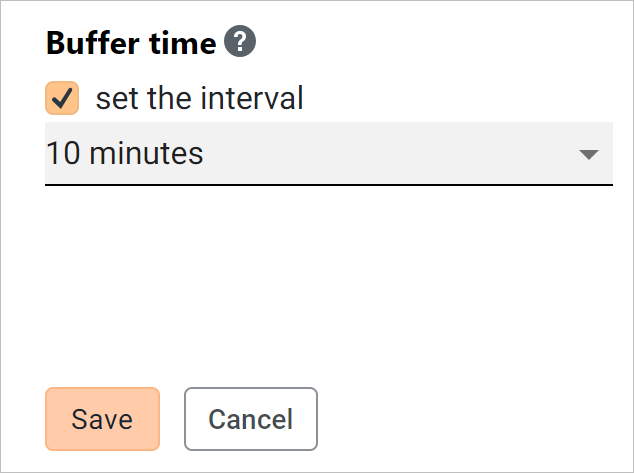
2.Select an interval from the drop-down list.
3.Click Save.
