Edit sender data (name and signature)
When creating an account, a default profile is automatically generated for it. The profile contains the user's first and last name, as well as a signature for emails. This information will be visible to the recipients of the emails. The user can edit their profile. Deleting the default profile is possible after creating a new profile. The new profile will automatically be used in place of the deleted one.
To add a new account profile, do the following:
1.In the Personal information settings section of the account, click New name and signature. The New sender details window will open.
2.In the Name field, enter the sender's first and last name.
3.In the Signature field, enter the signature text. The signature text can be formatted using the tools on the formatting pane.
4.If necessary, you can add an image (no more than two images per signature) or a link. The maximum image size in a signature is 640 x 640 px.
5.If you want this signature to be used as the default signature for all outgoing emails, check the box Default.
6.click Save.
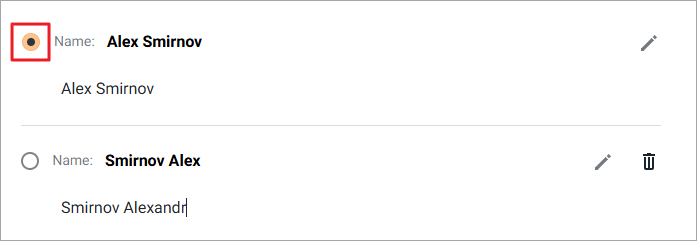
If necessary, you can select a default signature using the mark to the right of the profile name.The signature for which the check box is selected will be automatically added at the end of each email sent from this email address.
To edit an existing profile, do the following:
1. Click  to the right of the profile name. The New sender details window will open with the current profile data.
2. Edit the necessary fields.
3. Click Save. The updated data will be displayed in the section Sender details.
To remove the signature, click  and confirm the action.
If necessary, you can disable the addition of a signature to every outgoing email. To do this, set the switch Don't use signature to the active position.
