Change the avatar
Account avatar that you can customize in the Personal information section is displayed in the following sections:
–In the Section switching menu
–On the email snippets saved in the Drafts folder or sent on behalf of this account
–When viewing the received or sent emails in the Reading section in a new browser tab when pointing to the sender's name
–When creating events in the Calendar section
–On the contact snippets in the Contacts section
–In the mini-window for viewing recipient data when viewing an email and group member data in the group information pane
Upload or change image
To upload or change the image used as a user avatar, do the following:
1.In the Personal information section settings, click Change. The Account photo window will open :
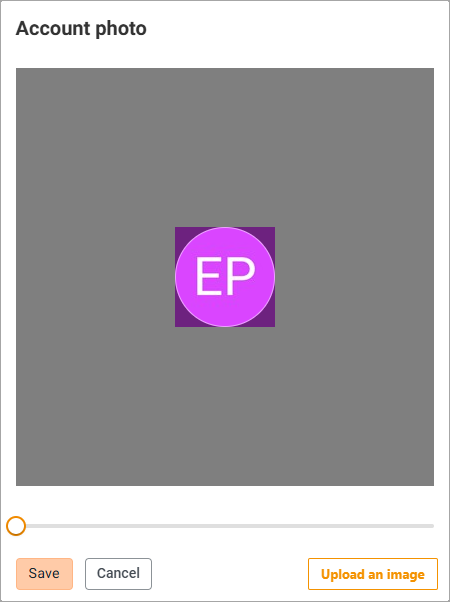
2.Click Upload an image. A system file selection window will open.
3.Select an image and click Open. The file selection window will close, and the selected image will be opened in the Account photo window.
4.Select the part of the image that will be used for the avatar (the image visible in the light circle in the center). To do this, you can:
•Decrease or increase the image size by moving the slider below the image.
•Move the image. Place the cursor on the image, press the left mouse button and, without releasing it, move the cursor in the desired direction.
5.Click Save. The Account photo will close, the selected image will be set as the account avatar.
Delete image
To remove an image that is currently being used as an avatar, click Delete.
