Sharing settings
To grant other users access to your mailbox or specific folders, in the Account settings section, select Sharing settings.
The Sharing settings pane contains a list of issued access permissions, each of which can be modified or deleted. To edit the permission, click the  button, to delete it, click
 .
.
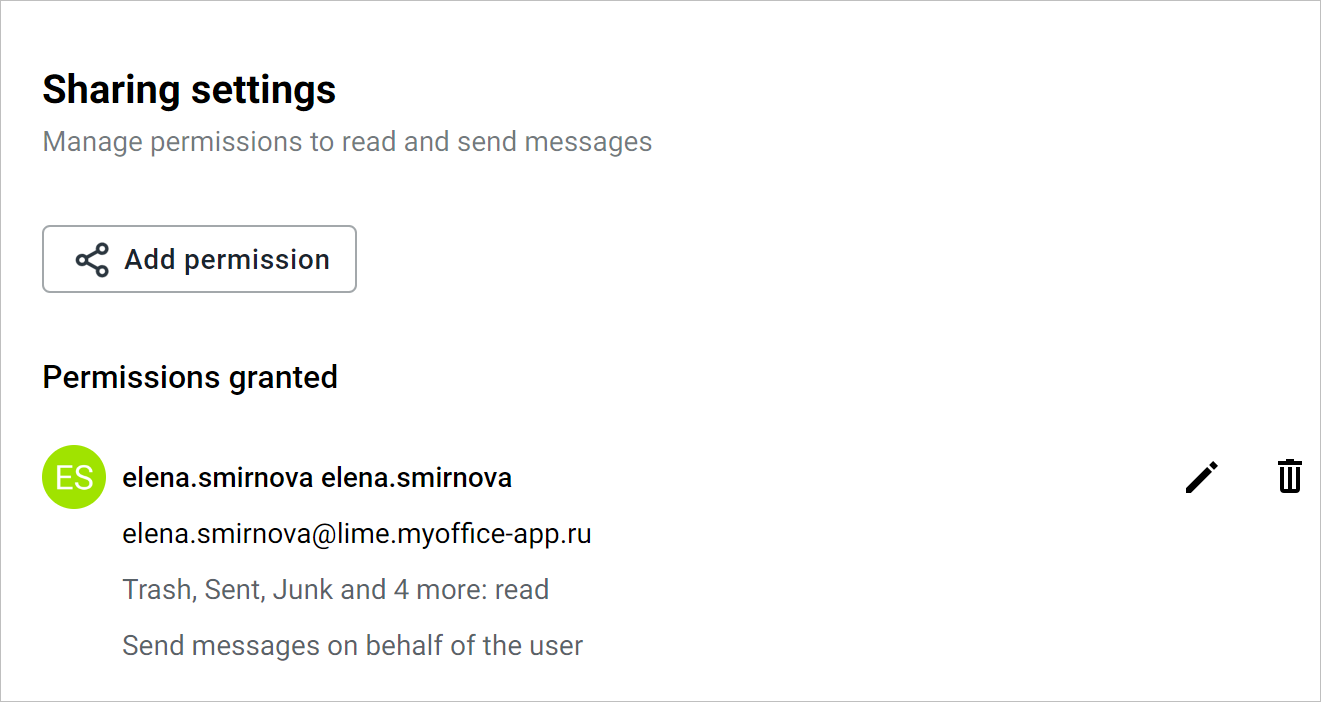
To create a new access permission for your mailbox or specific folders, do the following:
1. Click Add permission. The Sharing settings window will open.
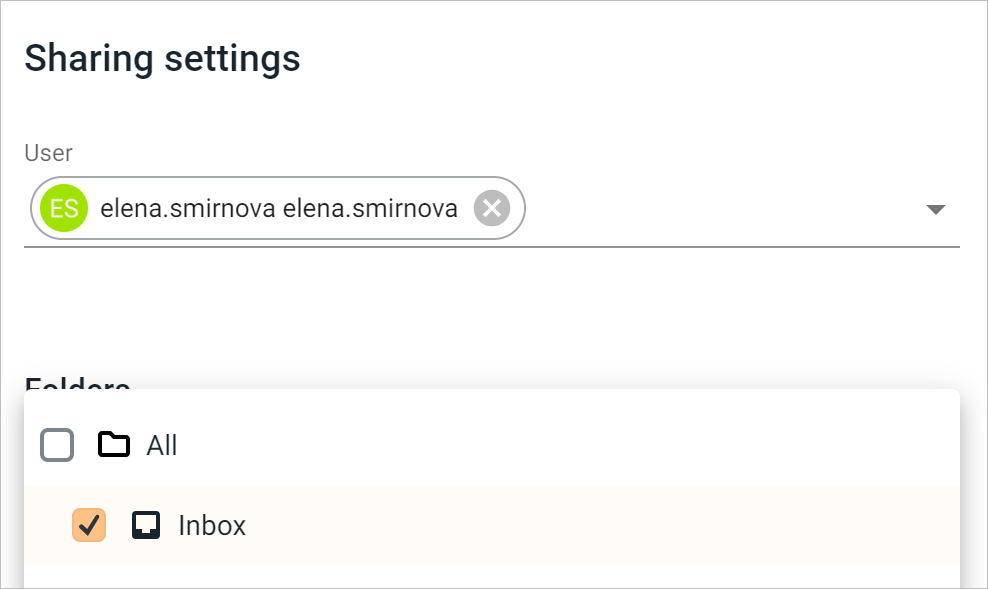
2. Specify the user to whom access should be granted: start typing their name in the User field and select the desired user from the list that appears.
3. In the list of folders, check the boxes to the left of the folders to which you are granting access.
4. If necessary, allow sending emails on your behalf: check the box Allow to send messages on my behalf.
5. Click Save.
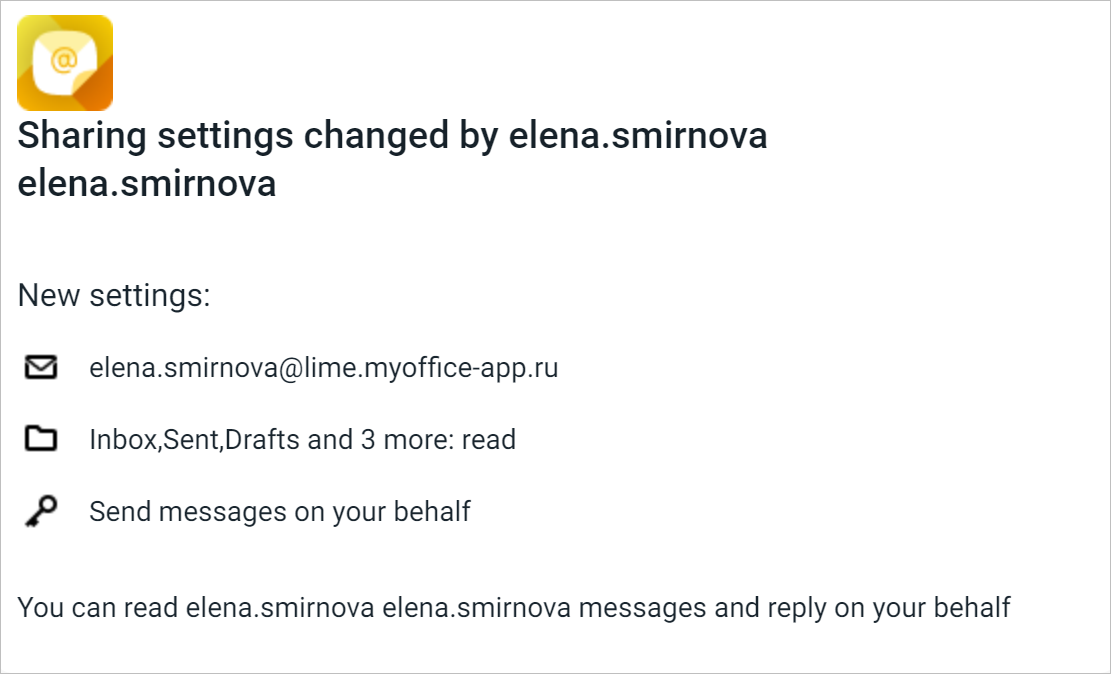
The user who was granted access will receive a notification about the change in access settings:
In the list of their folders (on the Navigation bar section Mail) a block will appear with folders to which access has been granted.
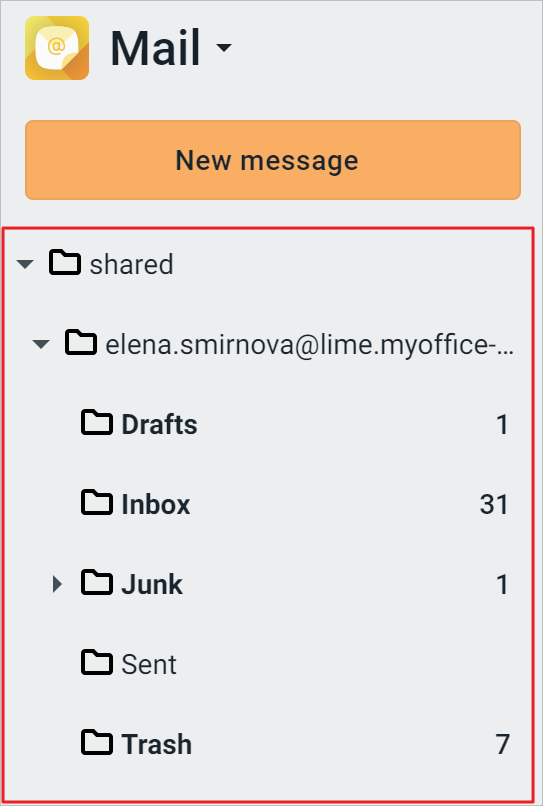
The user can open folders to which they have been granted access, view emails in them, reply to emails, forward them, etc.
