Log in with login and password
1.On the authorization page, enter the username and password provided by the server administrator of MyOffice Mail.
2.Click Log in.
If an error was made when entering the username and/or password, the "Invalid login or password" message will be displayed.
Preventing unauthorized access to the application
To protect against unauthorized access into the application, a password brute force blocking mechanism is provided. If the number of failed login and password attempts reaches the maximum possible value set by the administrator on the server, the message "Too many failed password attempts. Please confirm you are not a robot." will appear, as well as an image with symbols (CAPTCHA) and a field for their input.
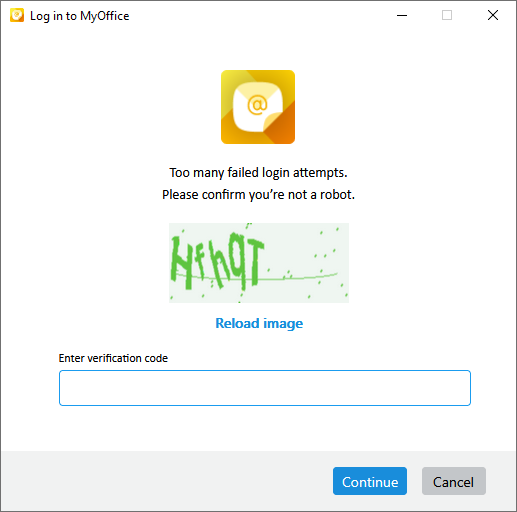
Figure 1. Protection against password brute force by a robot
To continue, do the following:
1.Enter the correct username and password.
2.Enter the code from the image in the appropriate field. If you cannot read the code in the image, click Refresh image to get an image with a different code.
3.Click Log in.
