Navigation bar
The Navigation bar can be collapsed or expanded by dragging its right border with the mouse (with the left button pressed) to the left or right .
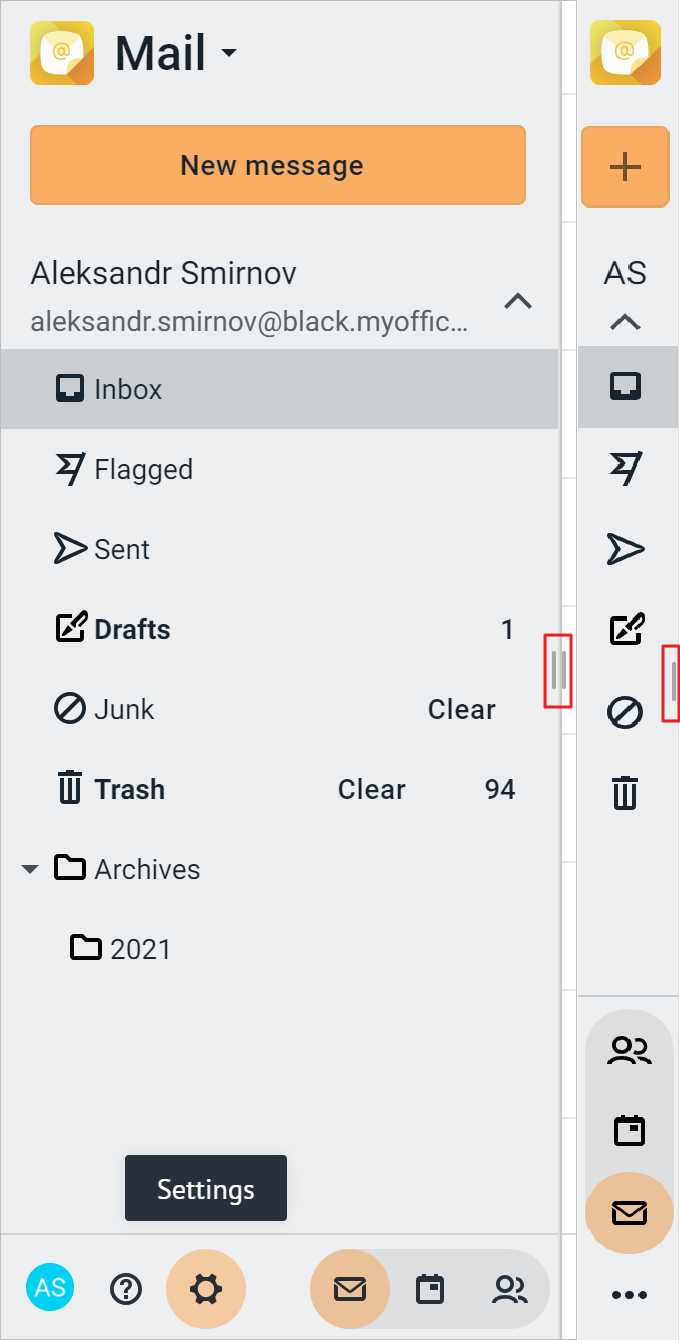
On the Navigation bar, the following controls are located:
Element |
Description |
|---|---|
|
Opens the Application menu, that is, the menu for navigating to sections Calendar, Contacts and other MyOffice applications From the Application menu, users can create a new email, new event, new document, spreadsheet, or presentation |
|
Opens the window for creating a new email |
Account owner's username and email address |
The |
List of account folders |
Complete list of folders with the user's emails. The list is not displayed when collapsed |
Name and email address of the additionally connected account |
Displayed if the user has connected an additional account. To the right is the |
List of folders of the connected account |
List of folders with messages from the connected account. The list is not displayed when collapsed |





Folder list
Email folders allow organizing the mailbox and sort emails by category. The folder list contains the following folders:
–Inbox: A folder for incoming emails.
–Flagged: A folder with emails that have been marked as important.
–Sent: Emails sent by the user are automatically sent to the folder.
–Drafts: A folder for emails that were saved manually or automatically and were not sent.
–Spam: A folder for questionable incoming emails that are identified as unwanted (according to a number of built-in criteria or custom filter settings) automatically or manually by the user.
–Trash: A folder for emails deleted by the user.
–User-created folders.
–Shared: Folders of other users to which the access is granted.
When you select a folder in the Navigation bar, the emails in it are displayed in the List of emails. The selected folder is highlighted in color on the Navigation bar.
The email count in the folder line shows:
–For all folders except the Drafts folder: The number of unread emails in the folder. The unread message count disappears if the user has viewed or marked all emails as read. If you click on the unread message count, only unread messages will be displayed in the List of emails. To return to the full list of emails, click on the folder name.
–For the Drafts folder, the email count displays the total number of emails in the folder.
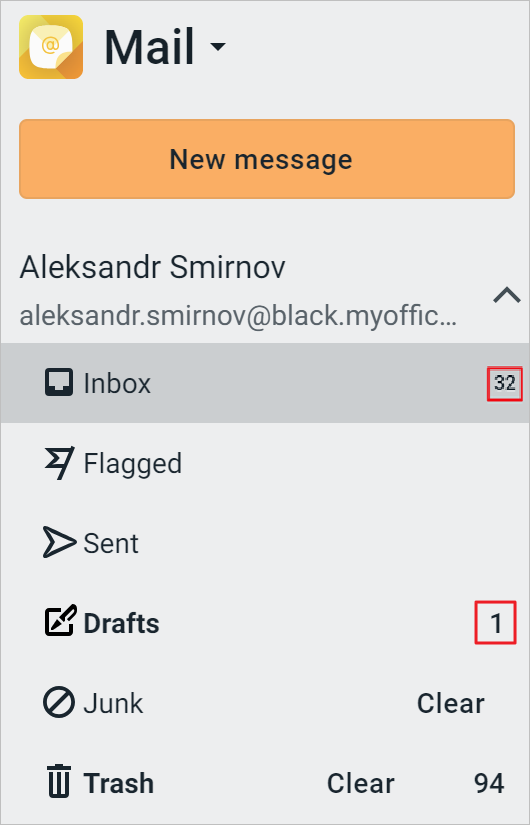
User-created folders are always displayed after the system ones. The user can create nested folders for all folders except Drafts and Spam. If a folder has nested folders, the  /
/ button appears to the left of its name, allowing to expand/collapse the nested folders.
