List of emails
The width of the List of emails pane can be changed by dragging the mouse (with the left button pressed) along its right border to the right or to the left.
The List of emails contains the following elements:
–Toolbar
–Email snippets
–Buttons for navigating through the pages of the List of emails
Toolbar of the List of emails
The following elements are located on the Toolbar:
– : The check box to select all emails in the page in one action.
–Name of the selected folder.
– : The button to update the List of emails.
– : The button to perform email search in the active folder. Opens the search query input field.
– : The button to open additional data entry fields for searching emails.
If there are selected emails in the List of emails, the Toolbar displays tools for working with the selected emails:
–: The check box to select all emails in the open page.
–A counter for selected emails. The button  to the right of the counter opens a menu that contains commands to clear and select read, unread, and flagged emails.
– : The button to move the selected emails to another folder.
– : The button to mark all selected emails as unread or read.
– : The button for deleting selected emails.
– : A button to open an additional menu with the commands: Add tag and Spam.
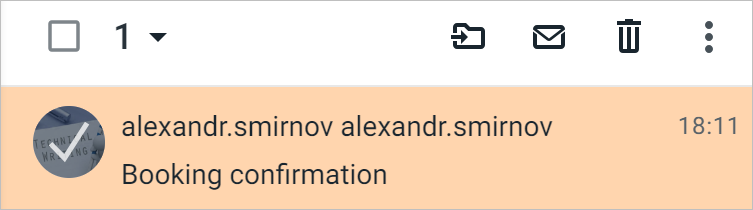
The ways to select emails in the active folder are described in the Select emails in a folder section.
If there are selected emails in the Flagged folder, the folder has a collapsed Toolbar that contains the following buttons: , , .
Email snippets
The emails in the List of emails are presented as snippets.

Each snippet displays:
–Avatar of the sender or recipient of the email. The avatar is the message selection button
–Name or email address of the sender (for incoming emails) or recipient (for outgoing emails)
–Date of receipt or sending of the email (if the email was not sent or received today) or the time of receipt or sending of the email (if the email was received or sent today)
–Subject of email. The subjects of reply emails are prefixed with "Re:", the subjects of forwarded emails are prefixed with "Fwd:". The subject of the unread email is highlighted in bold.
– /
/ : A mark of the importance of the email (the flag is displayed when pointing over the email).
In addition, the email snippet may display the following:
– : Availability of an attachment in the message.
– : Availability of an entry in the calendar.
–Priority of the message:  high or
  low.
low.
–Confidentiality of the email: confidential or
  personal.
–Availability of a reply or forwarding of an email:  the email has been replied to,
  the email has been forwarded.
– : Message tags (they can have different colors and there can be several of them at once).
–The number of emails in the thread (if there is a thread of emails). To open the thread of emails, click on the number at the right edge of the snippet.
When you select an email in the List of emails, the content of the email is displayed in the Reading section.
Page navigation buttons
If there are a large number of emails, the list is automatically divided into pages. In the page, the number of emails specified in the settings is displayed.
Buttons for navigating through the pages are displayed at the bottom of the List of emails  .
.
Clicking the button  opens the next page of the list,
  opens the previous page. Clicking the button
  opens the last page of the list,
  opens the first page. The buttons appear when there are more than 5 email pages.
