Add a video conference
If the administrator has configured the integration of MyOffice Mail with MySquadus or one of the video conferencing systems (VCS) such as Trueconf, Videomost, or Webinar.ru, when creating a calendar event, you can add a link to the video conference in that system.
If integration with MySquadus or the VKS system is configured, on the event creation form, under the Resources field, the Add conference <system name> command is displayed. An example for Squadus is shown on the Figure.):
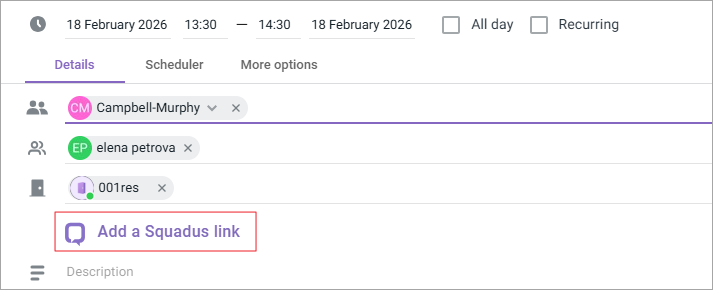
To add a video conference link to an event, click the left mouse button on the command Add conference <system name> on the event creation form. The text and buttons  and
and  will appear in place of the command Conference <system name> added.
If you need to delete the video conference link added to the event, click the button.
The link to join the video conference will be generated after the event is created. The link will appear in the event notification emails sent to its participants, as well as in the window for viewing event information.
When viewing an event in the calendar:
–The event organizer has the ability to delete the conference link by clicking the button .
–All participants of the event can copy the conference link by clicking the button  .
.
Features when using VKS Trueconf, Videomost, Webinar.ru
If one of the Trueconf, Videomost, or Webinar.ru video conferencing systems is used for the conference:
–After creating the event, the conference will be added to the personal account of the VKS system for the event organizer and its participants. If the conference link is removed from the event, the conference will be automatically deleted from the VKS system.
–For recurring events in the personal account of the Trueconf VCS system, Videomost, or Webinar.ru, only the conference for the nearest upcoming recurrence of the event will be displayed.
