Select the event date and time
When you open the event creation window, it displays the automatically assigned start and end dates and times of the event (in the line under the subject). The end date of the event is the same as the start date by default.
To edit the date and time, click on the value and select a different value in the window that opens. If the event takes the entire business day, check the All day box.
Recurring event
To create a recurring event, do the following:
1.When editing the date and time of an event, set the Recurring flag. A line with the event recurrence settings will appear%HMFIGCOUNTER+1%>).

2.Specify the desired values for the event recurrence parameters.
3.If you have set the Other value in the recurrence frequency field, a window for entering additional parameters will open. Enter the required values and click OK. The window will close.
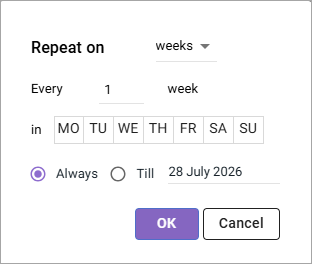
The event repetition parameters are set.
Additional information about automatic settings for editing event dates
1.If an event is created for one day (the start date is the same as the end date of the event), the All day check box is checked and the end date has not changed, then when the start date of the event changes, the end date will automatically change and become the same as the start date.
For example: an event has been created with a start date and an end date of July 24, and the All day check box is selected. If the start date is changed to July 25, the end date will automatically change to July 25.
2.If an event is created for several days, that is, the end date of the event has been changed at least once, and the Whole day check box is cleared, then when the start date of the event changes, the set duration of the event will remain, and the end date will automatically change. However, changing the end date of the event will not affect the start date, but will change the duration of the event.
For example: an event was created with a start date and an end date on July 24 from 14:00 to 15:00. The end date has been changed to July 26 (the duration of the event has become 2 days and 1 hour). If the start date is changed to July 27, the end date will automatically change to July 29, and the duration of the event will remain unchanged. If the end date is changed to July 28, the start date will not change (it will remain on July 27), that is, the duration of the event will decrease.
3.If an event is created for several days, that is, the end date of the event has been changed at least once and the All day check box is checked, then when the end date of the event changes, the set duration of the event is remembered and if the start date changes, the end date of the event will automatically change. Changing the end date of the event will not affect the start date, but the duration of the event will change.
For example: an event has been created with a start date and an end date of July 24, and the All day check box is selected. The end date has been changed to July 26 (the duration of the event has become 3 days). If the start date is changed to July 26, the end date will automatically change to July 28, and the duration of the event will remain unchanged. If the end date is changed to July 27, but the start date has not changed (July 26), the duration of the event will decrease.
