Create a new event
To create a new event, use any of the following methods:
–Click on the  button on the Navigation bar of the Calendar section.
–Click on any day or hour in the calendar grid of the workspace of the Calendar section.
–Click  or
or  and select Create meetup.
–In the List of contacts, select a contact and click Create event on the contact details pane.
A window for creating a new event opens. If the event was created from the Mail or Contacts sections, a new browser tab will open with the Calendar section and an open window for creating a new event.
The window for creating a new event has tabs: Details, Scheduler, More options. The name of the open tab is highlighted in purple and underlined.
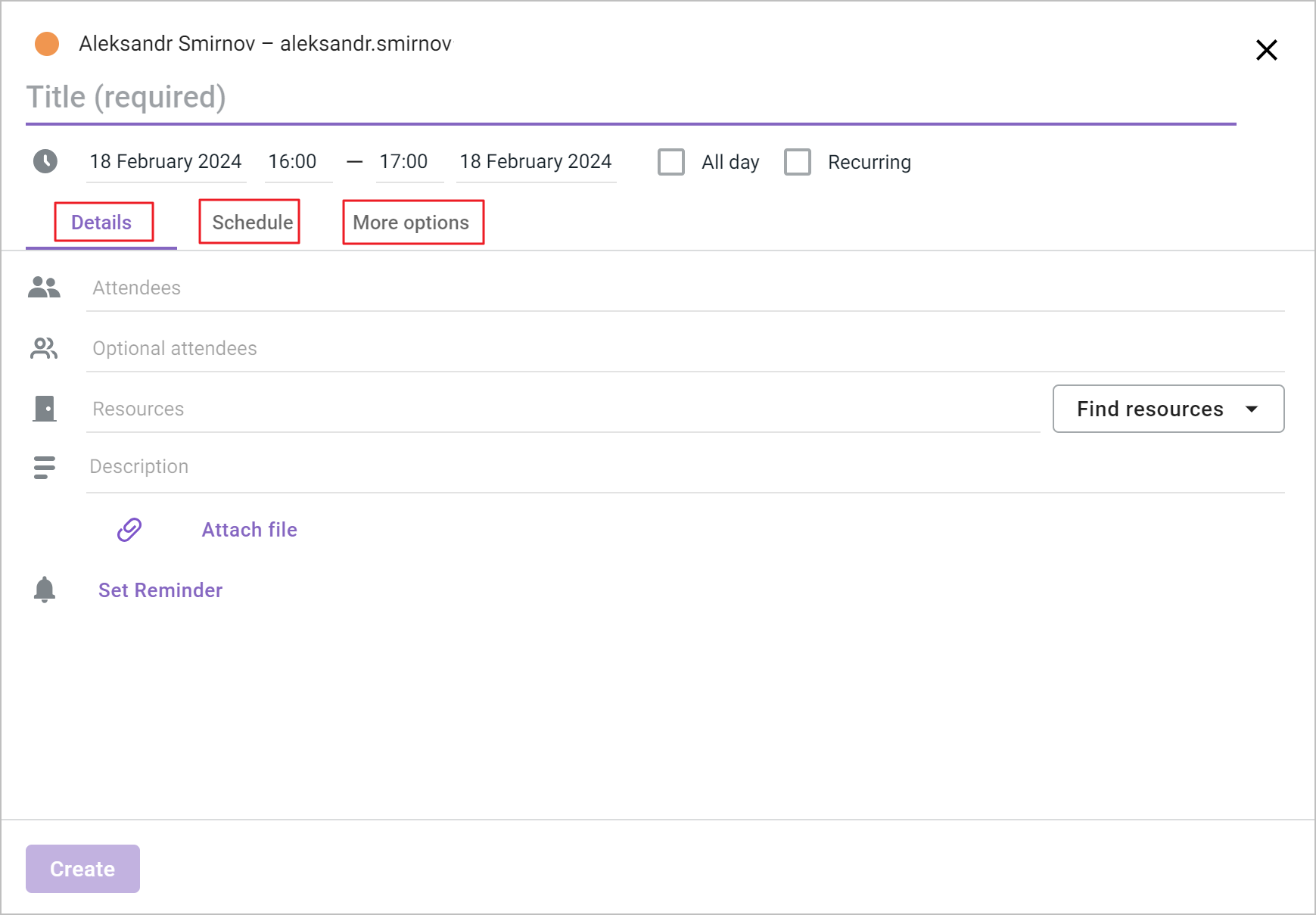
To create a new event, do the following:
1. Select the calendar where the event should be located.
2. Enter the theme of the event.
3. Specify the start and end dates and times of the event.
4. Specify the participants of the event (the action can be performed on the Details or Scheduler tab). To view the availability of participants, use the Scheduler tab.
5. Specify the resources that will be used for the event (the action can be performed on the Details or Scheduler tab). To view resource usage, use the Scheduler tab.
6. Enter a brief description of the event details.
7. Add attachments if needed.
8. If needed, set reminders about the event (by mail or notification).
9. If needed, on the More options tab, set the location, the occupancy parameter, and notification details.
10. After completing the data entry, click Create and select the option to notify participants.
To close the event creation window (at any stage of the work), do one of the following:
•In the event creation window, click  .
.
•Click anywhere outside the window.
If there are unsaved changes, a warning window will open. Select the appropriate option in it:
–Do not save: The event creation window will be automatically closed and the changes will not be saved.
–Save: The event parameters will be saved, the window will close, and the event will appear in the workspace of the calendar, in the cell with the corresponding date. To continue editing an event, you will need to left-click on it in the calendar grid.
–Cancel: Returns to the event creation or editing window.
