Fill-in
The Fill-in field is used in contract templates, applications, and questionnaires and is intended for data entry. For example, in the figure below, the Fill-in fields are the parts of the template that are in bold.

To fill in these fields, you need to update the document. The screen will display a series of windows for data entry.
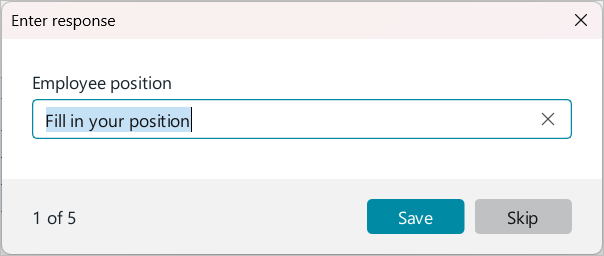
The structure of the Fill-in field:
FILLIN [“Prompt_text”] [switches] |
Code example:
FILLIN "Prompt_text" \d "Default_response" \* MERGEFORMAT |
Switches:
–\d inserts the default response text into the prompt.
–MERGEFORMAT retains formatting when updating the field. The current version of the application does not affect the Fill-in fields settings.
Limitations:
–Working with Fill-in fields is supported in .doc and .docx documents. Use of field switches is not supported in .odt and .xodt formats.
–The \o switch is not supported in Fill-in fields created in third-party editors.
–The maximum number of characters in the field code is 510.
To add a Fill-in field to a template, open the Field window, which is designed for inserting fields:
1.Place the cursor where you want to insert the field in the template.
2.On the Insert tab, click  Fields. When working in macOS, you can also run the Insert > Fields command from the command menu.
In the Field window, specify the Fill-in field code in one of the following ways:
–Enter the data for generating the field code. The code will be generated automatically.
–Enter the code in the Code box manually.
–Select the switches and specify their values in the Field options window.
To specify data for generating a field code, do the following:
1.Open the Field window as described above.
2.In the Field type area, select Fill-in.
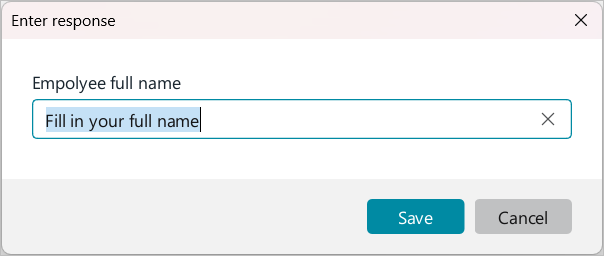
3.Enter the data to be displayed in the input window (see the fig. above), which will open when the Fill-in field is updated:
•In the Prompt text box, enter the text that will appear above the response box.
•If a default answer should be displayed in the response box, select the Fill in with default response checkbox.
•If the Fill in with default response checkbox is selected, enter the default response in the Response text box.
4.The Fill-in field code will be automatically generated in the Code box. Click OK.

5.The screen will display a window for entering data into the created Fill-in field. Click Save.
To specify the code in the Code box, do the following:
1.Open the Field window as described above.
2.In the Code box, enter the Fill-in field code manually.
3.Click OK.
4.The screen will display a window for entering data into the created Fill-in field (see fig. above). Click Save.
To select switches and specify their values in the Field options window:
1.Open the Field window as described above.
2.In the Field type area, select Fill-in.
3.Click Field options.
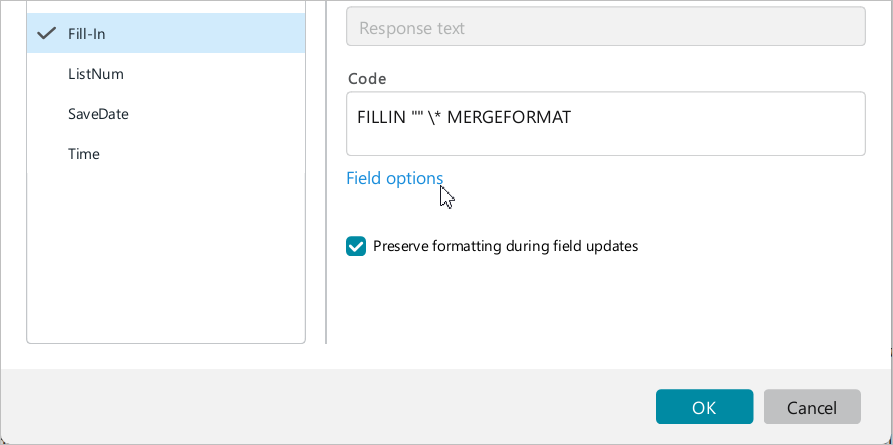
4.In the Field options window:
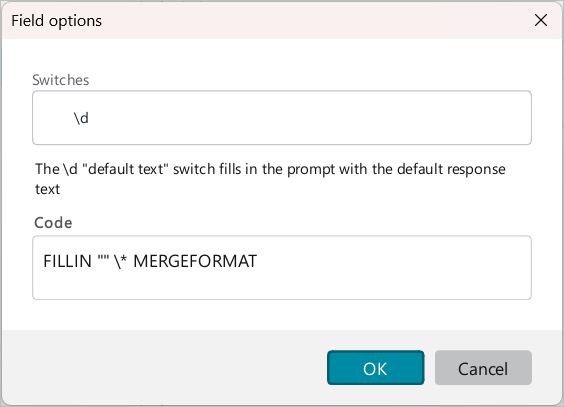
•If you want the default response to be displayed in the Fill-in field entry window, select the \d switch checkbox. The switch will be added to the Code box.
•In the Code box, enter the prompt text and, if necessary, the default response text.
•Click OK.
5.In the Field window, click OK.
6.A window will appear on the screen for entering data into the Fill-in field you created. Click Save.
