Group or ungroup objects
You can group objects on a slide and manage them as a whole. Unlike multiple selection, the grouping of objects is retained until you use the Ungroup command.
On the slide, you can group:
–Individual objects
–Individual objects and groups of objects
–Several groups of objects
To group objects and/or groups, follow the steps below:
1.Select the objects and/or groups.
2.Run the Group command in one of the following ways:
•On the Home tab, in the Arrange group, click  Group.
•On the Home tab, in the Arrange group, click the arrow to the right of the Group button and run the Group command.
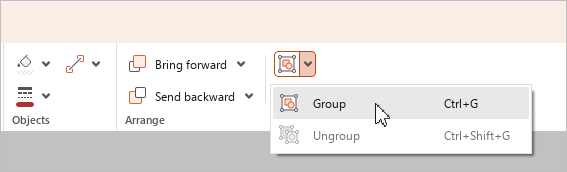
•Right-click any of the selected objects and run the Group command from the context menu.
•When working in macOS, run the Format > Arrange > Group command from the command menu.
•Press Ctrl+G (Windows, Linux) or ⌘Cmd+G (macOS).
Grouped objects/groups of objects will have a common frame.
To ungroup one or more groups of objects, follow the steps below:
1.Select the required groups.
2.Run the Ungroup command in one of the following ways:
•On the Home tab, in the Arrange group, click the arrow to the right of the Ungroup button and run the Ungroup command.
•Right-click the selected objects to open the context menu and run the Ungroup command.
•When working in macOS, run the Format > Arrange > Ungroup command from the command menu.
•Press Ctrl+Shift+G (Windows, Linux) or ⇧Shift+⌘Cmd+G (macOS).
The frame that unites the objects will be deleted.
