Rotate text
The text located in the table cells can be rotated 90 degrees to the left/right or positioned vertically.
To do this, follow these steps:
1.Specify the required cells:
•To rotate text or change the orientation of text in a single cell, select the cell, a piece of text in the cell, the entire text in the cell, or place the cursor in the cell.
•To rotate text or change the orientation of text in multiple cells, columns, or rows, select these table elements.
•To rotate text or change the orientation of text in the entire table, select the entire table.
2.On the Home tab, in the Paragraph group, click  Rotate text. When working in macOS, you can also run the Format > Rotate text command from the command menu.
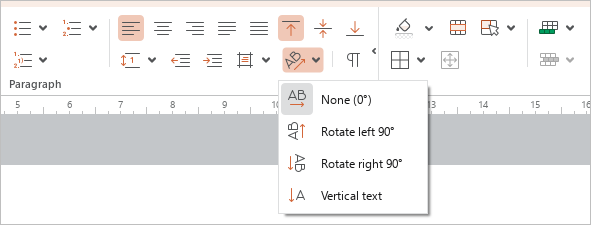
3.Run the required command:
•To rotate the text, run the Rotate Left 90° or Rotate Right 90° command.
•To arrange the text vertically, use the Vertical Text command.
To return to the default display of text in cells (horizontal, 0°), follow these steps:
1.Specify the cells as described above.
2.On the Home tab, in the Paragraph group, click Rotate text and run the None (0°) command. When working in macOS, you can also run the Format > Rotate text > None (0°) command from the command menu.
