Paste data on a slide
You can paste previously copied or cut data from the clipboard onto a slide. You can paste data from the clipboard with or without preserving the original formatting.
To paste data while maintaining the original formatting, follow the steps below:
1.Specify a place to paste the data:
•To paste text from the clipboard, place the cursor at the desired location on the slide.
•To replace text or an object with data from the clipboard, select that text or object on the slide.
•To paste an object from the clipboard, on the Slide bar, select the slide to paste the object.
2.Run the Paste command in one of the following ways:
•On the Home tab, in the Edit group, click  Paste or click the arrow to the right of the Paste button and run the Paste command.
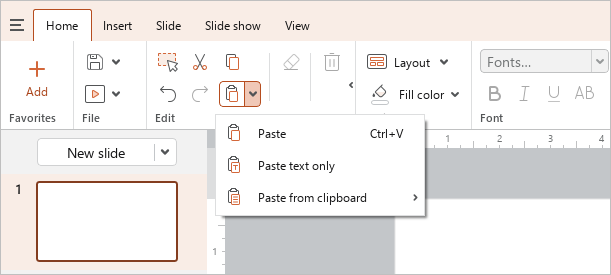
•Right-click to open the context menu and select the Paste command. To insert an object, you can call the context menu by right-clicking a slide on the Slide bar or anywhere on the slide in the workspace.
•Press Ctrl+V or Shift+Insert.
When you paste data without preserving the original formatting, only text is pasted from the clipboard. For example, when you paste a table or a shape with text, only the text that these objects contain is pasted onto the slide.
To paste data without the original formatting, follow the steps below:
1.Place the cursor where you want to paste the data, or select the text (object) you want to replace with data from the clipboard.
2.Run the Paste command in one of the following ways:
•On the Home tab, in the Edit group, click the arrow to the right of the Paste button and run the Paste text only command.
•Right-click to open the context menu and select the Paste text only command.
