Set the start number of the numbered list
You can change the numbering from any item in the list. For example, you can start the entire list with item 2 or place item 6 after item 3.
When the value is changed, the number format cannot be changed. That is, if the first level of the list contains Roman numerals, the new value can only be specified in Roman numerals.
The following rules apply when changing the numbering:
–If you change the value for the first top-level item, the entire list is renumbered.
–If you change the value for any other item in the list, the list is split. The specified value is set for the first item in the new list.
To open the numbering settings window, follow the steps below:
1.Specify the items in the list to be renumbered in one of the following ways:
•Select the list item from which you want to change the numbering, or place the cursor in it.
•Select multiple items from which you want to change the numbering, or all items in the list for which you want to change the numbering. The selected items should be on the same level. If the selected items have sub-items, they will inherit the new numbering automatically.
2.Open the List numbering window using one of the following methods:
•On the Home tab, in the Paragraph group, click the arrow to the right of the  Numbered list button and select Set start number.
•Right-click to open the context menu and select the Set start number command.

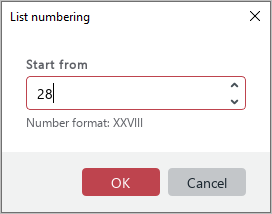
In the List numbering window, in the Start from box, specify the starting value of the list. In the current version of the application, you can only specify Arabic numerals as a value: 1, 2, 3, and so forth.
If the list uses a numbering format other than Arabic numerals, the specified numeric value is automatically converted to the appropriate format and displayed below the list as a tooltip. For example, if Roman numerals are used in the list and the value 28 is specified in the Start from box, the tooltip displays Number format: XXVIII.
When entering a value, the following rules apply:
–If the numbering format is numeric, only a positive numeric value or zero can be specified in the input box.
–If the numbering format is alphabetic, you cannot enter a zero.
–If the numbering format is numeric and the list starts with zero, when the format is changed to alphabetic, the list will start with the letter “A”.
–If a long number is displayed in the tooltip text, it is truncated with an ellipsis.
You can enter the value in the Start from box manually, change it using the counter, ↑ and ↓ keyboard keys, or by scrolling the mouse wheel.
One step of increasing or decreasing the value is 1. To increase or decrease the value by 10, do one of the following:
–Change the value by holding Shift down.
–Press Page Up (Windows, Linux) or Fn+↑ (macOS) to increase the value. Press Page Down (Windows, Linux) or Fn+↓ (macOS) to decrease the value.
Click OK to apply the specified value.
