Insert a link to the slide
You can add to the presentation:
–Links to specific slides in the presentation. For example, to the second or third slide. If you move a particular slide, the link remains valid; if you delete it, it becomes invalid.
–Dynamic links: To the first, last, next, and previous slides of the presentation. Dynamic links are automatically updated when you add, move, or delete slides. If the presentation consists of one slide, the link leads to that slide.
A link to a slide can be displayed in a presentation as:
–Any text: For example, link.
–An indication of the slide's place in the presentation structure (for example, Previous slide) or a particular slide (for example, Slide 2).
To add a link to a slide, follow these steps:
1.Specify the place to insert the link in one of the following ways:
•To format a typed word as a link, place the cursor in the word or select the entire word. To format a typed text fragment as a link, select the whole text fragment.
•To add a word or text fragment with a link to a presentation that has not yet been typed, place the cursor at the desired location in the presentation. If you want to insert a word or a text fragment with a link into an empty table cell, select the cell or place the cursor in it.
•To add a link to a presentation that references a slide's place in the presentation structure or to a particular slide, place the cursor at the desired location in the presentation.
2.Insert the link in one of the following ways:
•On the Insert tab, click  Link.
Link.
•Right-click to open the context menu and select the Insert link command.
•When working in macOS, run the Insert > Link command from the command menu.
•Press Ctrl+K (Windows, Linux) or ⌘Cmd+K (macOS).
3.In the Insert link window, on the Slide in this presentation tab:
•To insert a dynamic link, click Place in structure and select to which slide you want to insert the link: First slide, Last slide, Previous slide, Next slide.
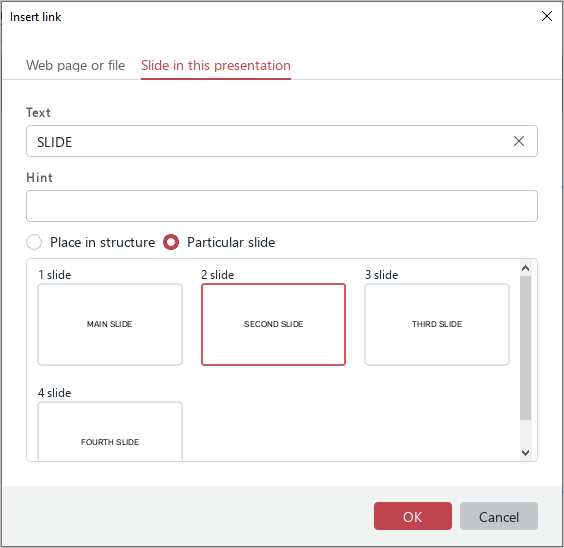
•To insert a link to a particular slide, click Particular slide and select the thumbnail of the slide to which you want to insert the link.
•If you want the link to be displayed as text and the Text box is not filled in, enter the required text. By default, the Text box is automatically filled with the word on which the cursor is placed, the selected word, or the selected text fragment. If the link should refer to the slide's place in the presentation structure or to a specific slide, leave the Text box blank.
•In the Hint box, enter the text of the tooltip, if necessary. The tooltip will be displayed when the cursor is placed on the link text.
•Click OK.
