Configure header and footer
To configure headers and footers, follow the steps below:
1.Place the cursor on any page in the section where you want to change the headers or footers.
2.Switch to the header or footer editing mode using one of the following methods:
•On the Insert tab, click  Header and footer and run the Header or Footer command.
•On the Page tab, click  Header or
  Footer.
•To configure the headers, move the mouse cursor to the top of the page. To configure the footers, move the mouse cursor to the bottom of the page. When the cursor changes to  or
or  , double-click the left mouse button.
3.Open the header and footer settings pane in one of the following ways:
•Below the header or above the footer, click Options and run the Header settings / Footer settings command.

•On the right sidebar, click  Header to customize the header or
  Footer to customize the footer.
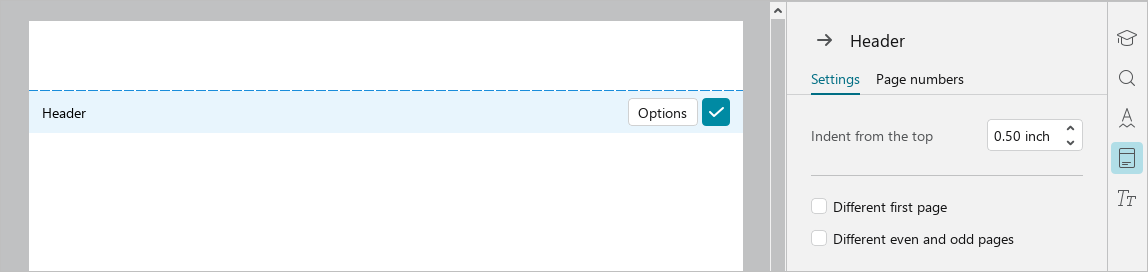
4.In the header and footer settings pane, specify the required parameters).
5.Add data to the header and/or footer: enter text or insert the desired object. Format the header and/or footer content as needed. If you have chosen to create a different header or footer for the first page and/or different headers and footers for even and odd pages, add and format the content in each type of header and/or footer.
Option |
Action |
|---|---|
Indent from the top Indent from the bottom |
Indent from the top edge of the page to the data entry line in the header. Indent from the bottom edge of the page to the data entry line in the footer. |
Different first page |
Allows you to create unique content in headers and footers both on the first page of the whole document and on the first page of any of the sections. When checked, both the header and footer of the first page become the different ones. When checked, the application saves the data that is entered in the different header and footer and when checked/unchecked, it displays/hides exactly that data. |
Different even and odd pages |
Applies to both header and footer at the same time. Determining whether pages are even or odd always begins on the first page of a document, regardless of whether there are sections. |
To quickly move from configuring the header to customizing the footer, select the footer with a single click. The header settings pane closes and the footer settings pane opens. You can move from customizing the footer to customizing the header in the similar way.
The header or footer settings pane closes automatically when you exit the header and footer editing mode. If necessary, it can be hidden manually while working with headers and footers.
To do this, proceed with one of the following:
–At the top of the pane, click  .
.
–On the right sidebar, click Header or Footer.
Click the Header or Footer button again to display the pane.
To exit header and footer editing mode, do one of the following:
–Double-click the document text outside of the header and footer area.
–Click  below the header or above the footer.
–Press Esc.
