Help and assistance
Click  Help to open the menu with additional information and feedback options:
Help
The Help section contains chapters describing how to use MyOffice products. Every product has its own help documents. How to use the Help section Clicking The help page has two sections: the navigation section and the contents section which include the following search and navigation tools: 1.Table of contents in the navigation section to move through the sections. It is organized in a tree-like structure with elements that can be collapsed or expanded by clicking 2.The search field in the right upper part of the Help window. Enter the word or the word combination that you want to find and select the respective section in the search results list. 3.The navigation arrows 4.Hyperlinks in the text to move to the section of the document which contains the description on the selected element. |

 next to the section title.
 in the upper part of the displayed page to move to the previous or to the next section.
Release notes
The Release notes section contains up-to-date information about the new features of the current version of the application. The button may contain an indicator informing that there are updates to the application. The indication will be displayed for 14 calendar days from the date of system update or until the user checks the information about the changes. Clicking |

About
Clicking |

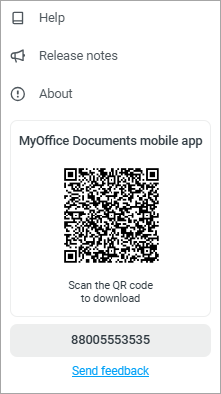
About mobile application
To learn more about the possibilities of working through the mobile application, scan the QR code from your phone. You will be redirected to the web version of the site, where you can download MyOffice Documents mobile application. If you have problems with the transition to the MyOffice website, contact the administrator for more information about the application and how to install it. |
Send feedback
If the email system is connected and the system administrator has specified the email address of the support service in the MyOffice Documents Online settings, a special form will become available for contacting the technical support service. Before contacting the technical support, check the Help section for possible answers. When clicking Send Feedback, a new tab will open in the browser containing the feedback form. Fill the Topic field and describe your issue in the Message field. Click Submit to send your feedback. |
