Select cells
When selecting cells, please note the following specifics:
- If the selected cell range includes a merged cell, it is expanded to the borders of the merged cell.
- If the cursor is positioned in a nested table, the cells are selected in the nested table, not in the parent table.
To select a single cell, follow the steps below:
- Place the mouse cursor in that cell.
- On the Home tab, in the Table group, click
 Select and run the Select cell command.
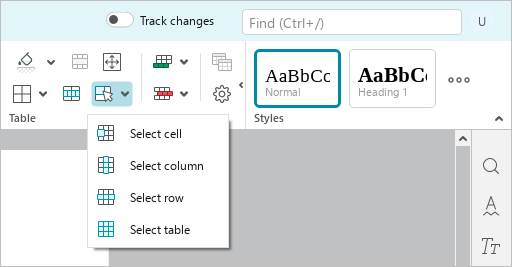
If any cell in the table is selected, you can use the keyboard keys listed in the table to quickly select other cells.
| Keyboard shortcut | Description |
|---|---|
Tab | Select the next table cell |
Shift+Tab | Select the previous cell in the table |
→, ←, ↑, ↓ | Select a cell on the right, left, top, or bottom of the cell |
Enter | Select a cell from the bottom |
Home | Select the first cell of the row |
End | Select the last cell of the row |
Shift+↑, ↓, ←, → | Select a range of cells starting from the current one |
To select an arbitrary range of cells, use one of the following methods:
- Place the cursor in the first cell of the desired range. If there is a shape or a nested table in the cell, place the cursor outside of that object. Hold down the left mouse button and drag the cursor to the last cell of the range. Release the left mouse button.
- Place the cursor in the first cell of the desired range. If there is a shape in the cell, place the cursor outside the shape or select the shape with a single click. Hold the
Shiftkey down and select the last cell in the desired range.
The desired range can be selected in any direction of the row or column.