Delete columns or rows
To delete a single column or row, follow the steps below:
-
Select the column or row to delete in one of the following ways:
- Select this column or row, or a range of cells in this column or row.
- Place the cursor in a cell or select a cell in that column or row.
-
Delete a column or row using one of the following methods :
- On the Home tab, in the Table group, click the arrow to the right of the button for deleting columns and rows. Run the Delete column or Delete row command.
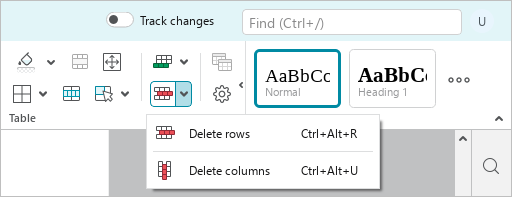
•Right-click to open the context menu and run the Delete column or Delete row command.
•Press Ctrl+Alt+U to delete the column. Press Ctrl+Alt+R to delete the row.
To delete multiple columns or rows, follow these steps:
- Select these columns or rows, or cells located in them.
- Delete columns or rows using one of the following methods :
- On the Home tab, in the Table group, click the arrow to the right of the button for deleting columns and rows. Run the Delete column or Delete row command.
- Right-click anywhere in the selected range and run Delete rows / Delete columns command from the context menu.
- Press
Ctrl+Alt+Uto delete columns. PressCtrl+Alt+Rto delete rows.
To quickly delete one or several columns or rows, follow these steps: