Cross-references
Cross-reference is a reference to an element in another part of the document. MyOffice Text allows you to create a link to a heading, a numbered list item, or a bookmark.
tip
- In the current version of the application, you cannot work with cross-references of unsupported types (footnote, endnote, image, table, function) created in third-party editors.
To create a cross-reference, follow these steps:
- Place the cursor where you want to insert a cross-reference.
- On the Insert tab, click
 ** Cross-reference**.
 - In the Cross-reference window, in the Reference type drop-down list, select the elements to which the reference will lead: Heading, Numbered list or Bookmark. If you need to insert a cross-reference to a system bookmark, in the lower part of the window select the Show system bookmarks checkbox.
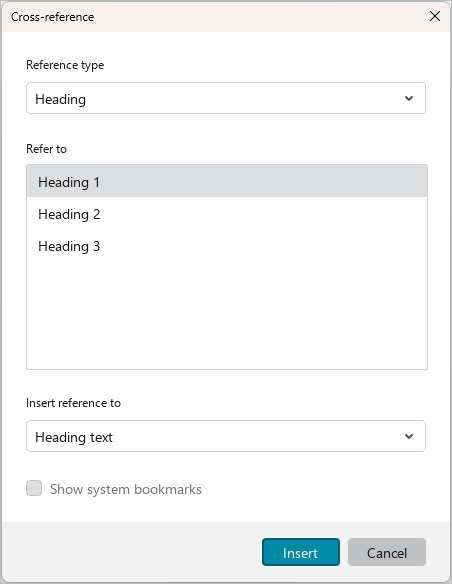
- In the Refer to box, select the specific element you want the reference to refer to. This box will contain the list of all elements of the reference type selected during the previous step. The list will be generated automatically.
- In the Insert reference to drop-down list, specify the numeric or text value of the cross-reference (see the table below). The list of values depends on the previously selected element type.
- Click Insert.
| Element | Description |
|---|---|
| Heading |
|
| Numbered list |
|
| Bookmark |
|
tip
If a cross-reference is incorrect, the # symbol will be displayed instead.
To insert other cross-references, repeat the procedure.
The cross-reference window does not block work with the main application window. To close this window, click the  button in its title bar.
Cross-references are updated automatically.
To follow the link, click it while holding down Ctrl pressed.
To change an existing cross-reference, delete it and add a new one.
To delete the cross-reference:
- Select the cross-reference with a mouse click.
- Delete it in one of the following ways:
- On the Home tab, in the Edit group, click
 Delete.
 - Right-click the selected cross-reference and select Delete from the context menu.
- Press
Delete.
- On the Home tab, in the Edit group, click