Page break
MyOffice Text automatically splits documents into pages. You can also add page breaks manually anywhere in the document. To do this, proceed as follows:
- Place the cursor where you want to start a new page in the document.
- Insert a page break in one of the following ways:
- On the Home tab, in the Insert group, click the arrow to the right of the
 Section break button and select Page break.
- On the Home tab, in the Insert group, click the arrow to the right of the
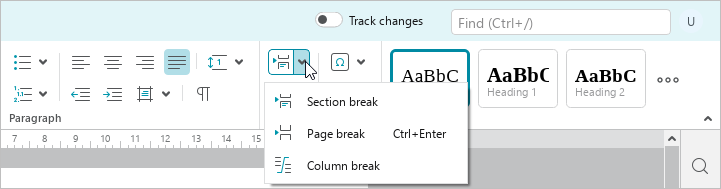
•On the Page tab, click  ** Page break**.
•Press Ctrl+Enter.
To see a page break, turn on the display of non-printable characters.
To delete a page break, follow the steps described in the Delete text section.