Insert a column break
The text of the document is distributed evenly across the columns. If you need to forcibly move a portion of text from one column to the next, insert a non-printable character called a column break.
To insert a column break, do the following:
- Place the cursor at the beginning of the text you want to move to the next column.
- Insert a column break in one of the following ways:
- On the Home tab, in the Insert group, click the arrow to the right of the
 Section break button and select Column break.
- On the Home tab, in the Insert group, click the arrow to the right of the
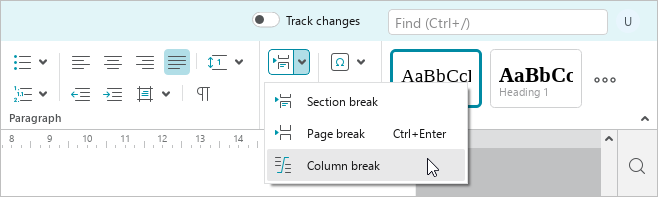
•On the Page tab, click  ** Column break**.
To see a column break, turn on the display of non-printable characters.
To delete a column break, follow the steps described in the Delete text section.