Rotate text
You can rotate the text located in the table cells by 90° to the left or right.
To do this, follow these steps:
-
Specify where you want to rotate the text:
- To rotate text in one cell, select a cell, a fragment of text in a cell, the entire text in a cell, or place the cursor in it.
- To rotate text in multiple cells, columns, or rows, select these table elements.
- To rotate the text in the entire table, select the entire table.
-
On the Home tab, in the Paragraph group, click
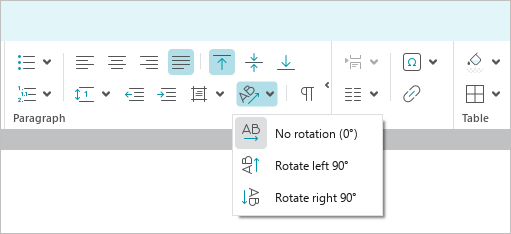
 Rotate text.
 -
Select the direction of text rotation: Rotate left 90°, Rotate right 90°.
tip
The command is run for all the text located in the cell. There cannot be several fragments in one cell with different direction of text rotation.
To return to the default display of text in cells (at an angle of 0°), follow these steps:
- Specify the cells as described above.
- On the Home tab, in the Paragraph group, click Rotate text and run the No rotation (0°) command.