Customize indents
In a list, you can customize the indents for:
- Numbers or bullets
- The text of the first line in the list item
- The text of the second and subsequent lines
To customize the indents, follow the steps below:
-
Specify the required items in the list:
- To customize the indents for all items on the same level, place the cursor in any of these items, or select these items without sub-items.
- To customize indents for several items in the same level, select those items without sub-items.
- To customize the indentation for a single item, select part or all of the text in the item.
-
Open the List settings window using one of the following methods:
- On the Home tab, in the Paragraph group, click the arrow to the right of the button corresponding to the current list:
 Bulleted list or
  Numbered list. Select List settings.
- On the Home tab, in the Paragraph group, click the arrow to the right of the button corresponding to the current list:
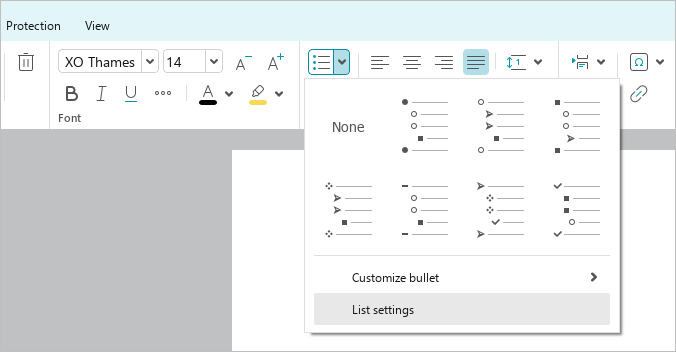

•Right-click to open the context menu and select the List settings command.
- In the List settings window, in the Indents section, specify the required indents (see the table below).
- Click OK.
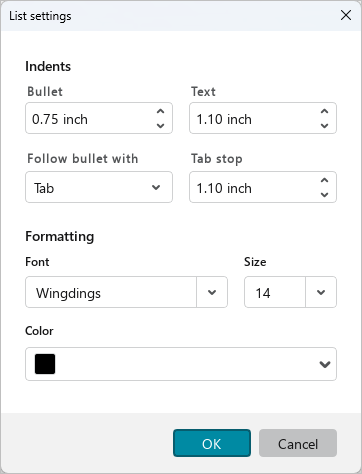
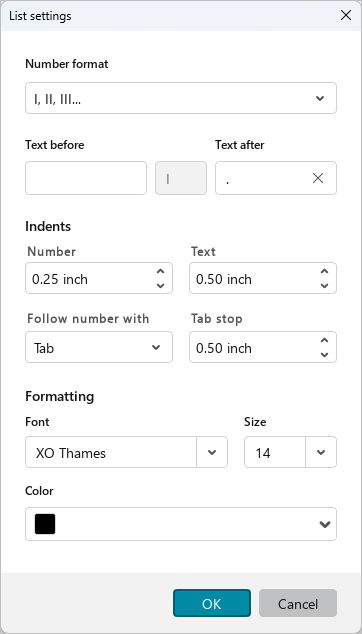
| Input box | Description |
|---|---|
| Number or Bullet |
|
| Text |
|
| Follow number with or Follow bullet with |
|
| Tab stop |
|
You can also customize the indents of the bullet/number and list text using rulers. In this case:
- Changing the indents using rulers does not change the values in the List settings window. The indent values displayed on the ruler refer to the paragraph settings.
- Changing the indents in the List settings window affects the placement of markers on the ruler.