Create a list
To create a list, follow these steps:
- Select the text fragment you want to convert to a list, or place the cursor on an empty line where you want to start the list.
- On the Home tab, in the Paragraph group, click the arrow to the right of the
 Bulleted list button to create a bulleted list, or the arrow to the right of the
  Numbered list button to create a numbered list.
 - Select a bulleted or numbered list style.
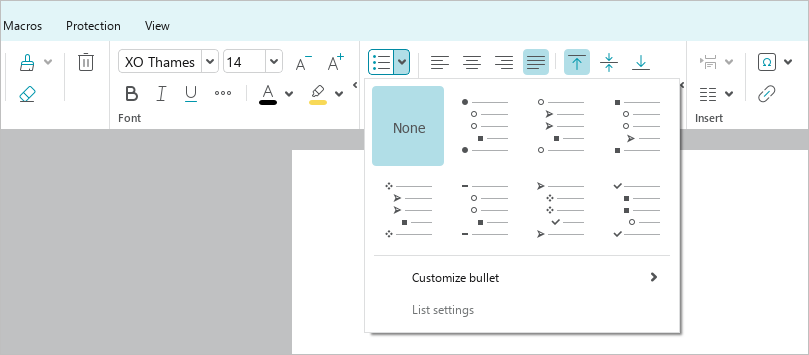

To quickly create a list on a blank line, use the following methods:
- To quickly start one of the numbered lists highlighted in the figure below, enter the character for the first level of that list (for example 1. or a)) and press
Space.
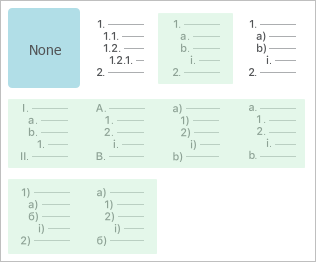
- To quickly start the bulleted list highlighted in the figure below in the top row, type * and press
Space. - To quickly start the bulleted list highlighted in the figure below in the bottom row, press the following keys in sequence:
•Hyphen (-) andSpace•``Space, hyphen (-) andSpace

The application saves the last selected style for bulleted and numbered list.
To quickly create a bulleted list in the same style as the previous one, follow these steps:
- Select the text fragment you want to convert to a list, or place the cursor on an empty line where you want to start the list.
- Do one of the following:
- On the Home tab, in the Paragraph group, click
 Bulleted list.
 - Press
Ctrl+Shift+8.
- On the Home tab, in the Paragraph group, click
To quickly create a numbered list in the same style as the previous one, follow these steps:
- Select the text fragment you want to convert to a list, or place the cursor on an empty line where you want to start the list.
- Do one of the following:
- On the Home tab, in the Paragraph group, click
 Numbered list.
 - Press
Ctrl+Shift+9.
- On the Home tab, in the Paragraph group, click
If there are no lists in the document, the default is to create a list in the style presented first in the list of bulleted or numbered lists.