Save as
To save a new file or create a copy of the current file, follow these steps:
- Run the save command in one of the following ways:
- Click the
 button and run the Save as command from the main menu.
 - On the Home tab, in the File group, click the arrow to the right of the
 Save button and select Save as command from the drop-down list.
- Click the

•Press F12 (Windows) or Ctrl+Shift+S (Linux).
- In the file manager window, select the folder where you want to save the file, specify the file name format of the file/copy of the file and click Save.
When you create a copy, the copy of the file becomes the document that you will be working on.
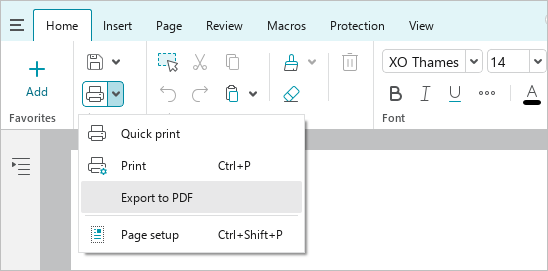
To save a file in .pdf or .pdf/a-1 format, you can also follow these steps:
- On the Home tab, in the File group, click the arrow to the right of the
 Quick print button and select Export to PDF command from the drop-down list.
 - In the file manager window, select the folder where you want to save the file, specify the file name format of the file/copy of the file and click Save.
When saving in .pdf and .pdf/a-1 formats:
- Links to websites remain functional.
- Table of contents, links to files and email addresses, cross-references to bookmarks, headings and numbered lists, and footnotes are not exported.