Delete a macro
You can delete a macro using the Macro editor or the Macros pane.
To delete a macro using the Macro editor, follow the steps below:
- On the Macros tab, click
 ** Macro editor**.
 - In the Macro editor window, select the required macro from the list and click
 .
.
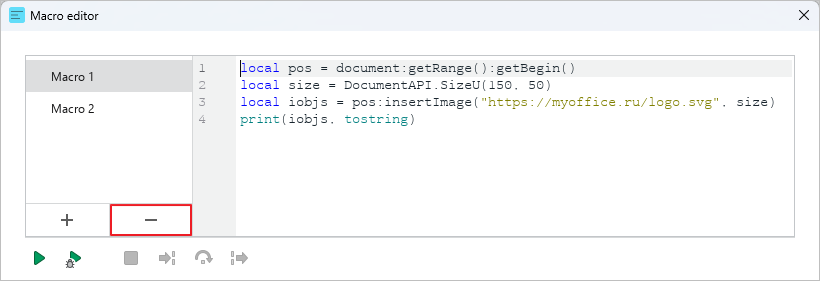
- In the window that opens, confirm the deletion of the macro.
To delete a macro using the Macros pane, follow the steps below:
- On the right sidebar, click
 Macros.
 - In the Macros pane, hover the mouse cursor over the name of the required macro, click the
 button and run the Delete command.
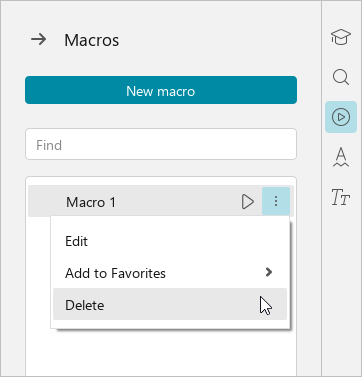
- In the window that opens, confirm the deletion of the macro.