Zoom a sheet
By default, the scale of each sheet is 100%. If necessary, you can zoom in or out the document.
To zoom in or out by 10%, do one of the following:
- On the View tab, click
 Zoom in or
  Zoom out.
 - On the Status bar, click
 Zoom in or
  Zoom out.

- Press
Ctrland rotate the scroll wheel forward to zoom in, or backward to zoom out.
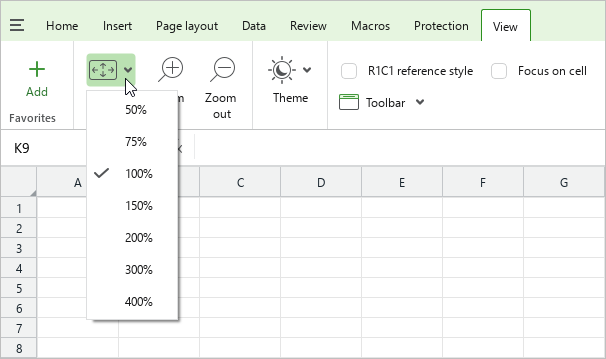
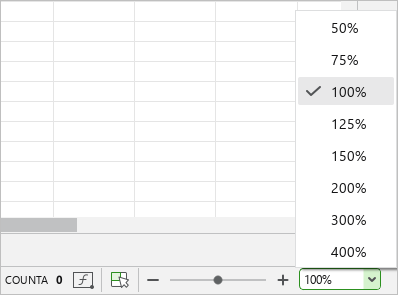
To select a zoom value from the preset values, follow the steps below:
- On the View tab, click
 Zoom or, in the right corner of the Status bar, click the
  button next to the current zoom value.
 - Select the desired value from the drop-down list.
To set an arbitrary zoom value, on the Status bar, do one of the following:
- While holding the left mouse button, move the slider to the right or left to zoom in or out, respectively.

- Select the current zoom value, edit it manually, and press
Enter.

To quickly set the zoom to 100%, press Ctrl+0 (zero).