Actions with multiple sheets
If you need to perform the same standard action (such as copying or hiding) with several sheets, it is more convenient to first select these sheets and then run the desired command.
Select multiple sheets
By default, only the current sheet is selected in the document, and its tab is highlighted in green in the sheet pane. You can add other sheets to the current one in one of the following ways:
- To select individual sheets, hold
Ctrldown and left-click the tabs of the desired sheets. - To select adjacent sheets, hold
Shiftdown and left-click the tab of the outermost sheet in the group you want to select. - To select all sheets in the document, right-click any sheet tab and select Select all sheets from the sheet context menu.
The tabs of selected sheets are highlighted in dark gray, while the tab of the current sheet remains highlighted in green.
When you select multiple sheets, the sheets quick actions pane opens.
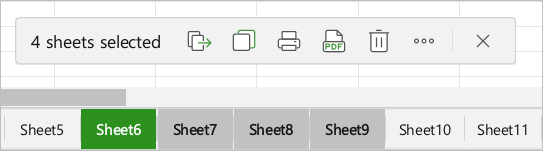
Actions with selected sheets
You can perform the following actions with selected sheets:
- Copy.
- Move.
- Duplicate.
- Delete.
- Hide.
- Hide zero values.
- Change tab color.
- Quick print.
- Export to PDF.
You can perform an action with sheets in one of the following ways:
- Click the corresponding button in the actions pane. Please note that some commands are available after clicking
 More button.
 - Right-click the tab of any of the selected sheets and select the desired option from the sheet context menu.
The order of operation of the above functions for multiple sheets is the same as for single sheets, with the following exceptions:
- When copying, duplicating, or moving non-adjacent sheets as a result of running a command, the sheets will be placed one after another.
- When using the default settings for printing, only the current sheet will be printed. It is only possible to print multiple sheets using macros or the Quick print command.
Clear the sheet selection
You can clear the selection of all selected sheets in one of the following ways:
- Click
 Remove sheet selection in the sheet actions pane.
 - Right-click or left-click any unselected sheet.
- Right-click the tab of any of the selected sheets and select the Remove sheet selection command from the context menu.
The following actions also lead to the selection being reset:
- Adding a new sheet, even if the action is subsequently canceled.
- Selecting a sheet from the list if that sheet has not been selected before.
- Using the keyboard shortcuts to move between sheets and select sheets, if this results in previously unselected sheets being selected.
To deselect individual sheets, hold Ctrl down and left-click the tabs of the sheets you want to deselect.