Protect a sheet
You can protect all or selected cells in the workspace from changes on the sheet. By default, MySpreadsheet suggests protecting all cells.
To protect the contents of a sheet, follow these steps:
-
Open the Manage protection pane in one of the following ways:
- Switch to the sheet and, on the Protection tab, click
 Protect sheet.
 - Right-click the sheet tab and select the Protect sheet command from the context menu.
- Switch to the sheet and, on the Protection tab, click
-
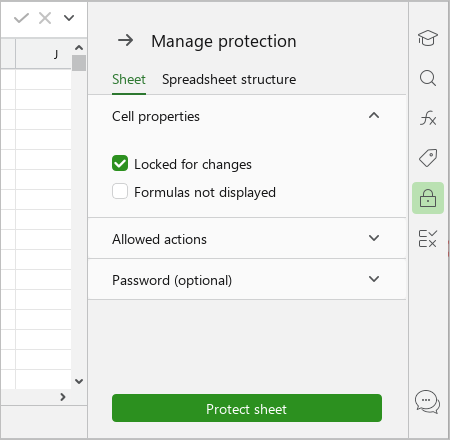
If you need to protect all cells in the workspace, in the Manage protection pane, on the Sheet tab, do not clear the Locked for changes checkbox.
-
If you need to specify the cells that users will be able to edit after installing protecting the sheet:
- Select these cells.
- Clear the Locked for changes checkbox.
-
If you want users to see only the result of the formula in protected cells with formulas:
- Select these cells.
- Select the Formulas not displayed checkbox.
-
Expand the Allowed actions section and specify which actions users are allowed to perform on protected cells.

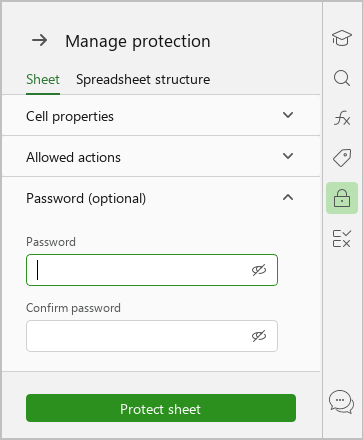
- If you want to set a password to unprotect the sheet, expand the Password (optional) section and enter the password and password confirmation.
- Click Protect sheet.
- Close the Manage protection pane in one of the following ways:
- At the top of the pane, click
 .
. - On the Sidebar, click
 Manage protection.
- At the top of the pane, click
When working with a document in Excel and LibreOffice Calc, sheet protection settings do not apply to cells located outside the workspace.