Anchor graphic objects to cells
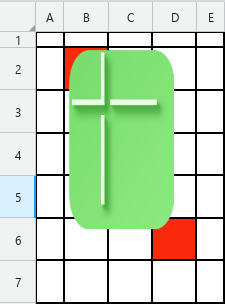
When you insert a graphic object, it is anchored to the cell into which it was inserted. When you move the upper-left corner of such a cell (for example, when resizing columns or rows, sorting, or filtering), the object will move along with it.
In the current version of MySpreadsheet, anchoring is supported for only one cell and only for images inserted from a computer or inserted as a new object.
The anchor is retained until the graphic object is moved or resized.
Anchoring to pivot table cells is retained only when the rows or columns of the pivot table are resized. It is not retained when the logical structure is changed, or when items are filtered, sorted, collapsed, or expanded.
Anchoring to table cells work the same way as anchoring to regular cells.
In Excel, objects can have different types of anchoring:
- Anchor to a single cell (described above).
- Anchor to two cells. The object is anchored by its upper-left and lower-right corners to the upper-left and lower-right cells into which those corners fall into. This type of anchoring sets both the object's position and its size.

For documents in .xlsx and .xls formats, the cell anchoring configured in Excel is retained when the document is opened in MySpreadsheet. This applies to all types of anchors (single-cell or two-cell) and all graphic objects (images, shapes, text boxes, embedded objects, charts).
For the .xls format, proper functioning of anchors is not ensured.
In this case, the anchor will also be retained until the object is moved or resized.
The anchoring parameters are retained when you save the document in .xlsx or .xods format in MySpreadsheet and then open it in Excel.