Enter a structured reference in a formula
Formulas with structured references are entered as usual.
To specify the name of a table in a formula, proceed with the following:
- Start typing the table name. The drop-down list will display matching names of tables and functions contained in the document. Tables are marked in the list with the
 icon.
icon. - Select the name of the desired table using the mouse or the keyboard in one of the following ways:
- Left-click the table name.
- Select the table name using the keyboard keys
↓and↑and pressEnter.
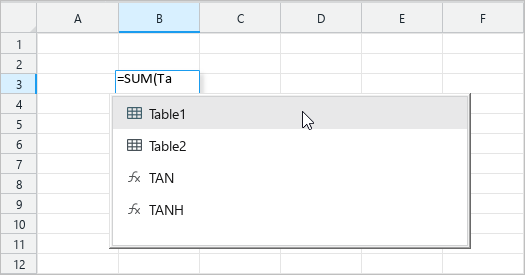
The table name will be entered into the formula.
To enter the column name or a reference to the table area (for example, #Totals or @), do the following:
- Enter the [ (left square bracket) symbol. The drop-down list will display the column names and the references to the table areas.
- Select the desired element from the list using the mouse or the keyboard:
- Left-click the element line.
- Select the element line with the
↓and↑keys and pressEnter.
The selected element will be added to the formula.
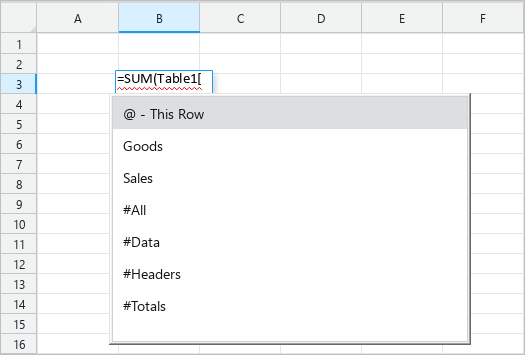
If the reference to the table data area (for example, [#Headers]) is entered correctly into a formula, it is highlighted in color, and the table highlights the range to which it refers (in this example, the header row).